
Team
Access without a password
Only the team lead can create logins without a password. The feature requires kiosk mode.
Not everyone in your business has their own email address — and not everyone needs one. For casual staff, kitchen hands or anyone who only ever works on the tablet on the wall, you can create a profile without a login: name, photo, department, store — done. That person never signs in themselves; they are picked on the kiosk device by tapping their photo.
The advantage over an anonymous shared account: completions, notes and signatures are logged under the right name and therefore show up correctly in reports and in the HACCP documentation.
Create the accounts
- Go to Settings › Team › Members.
- Tap Create logins without a password at the top.
- Fill in per person:
- Avatar (optional but recommended — on the kiosk people pick by picture)
- Full name (required)
- Department (optional, several possible)
- Store (optional — but if you have several stores, be sure to pick one, otherwise the person won't appear on any kiosk device)
- Add another person appends another card, so you can create up to 20 people in one go.
- Tap the create button. It shows the number, e.g. Create 3 accounts.
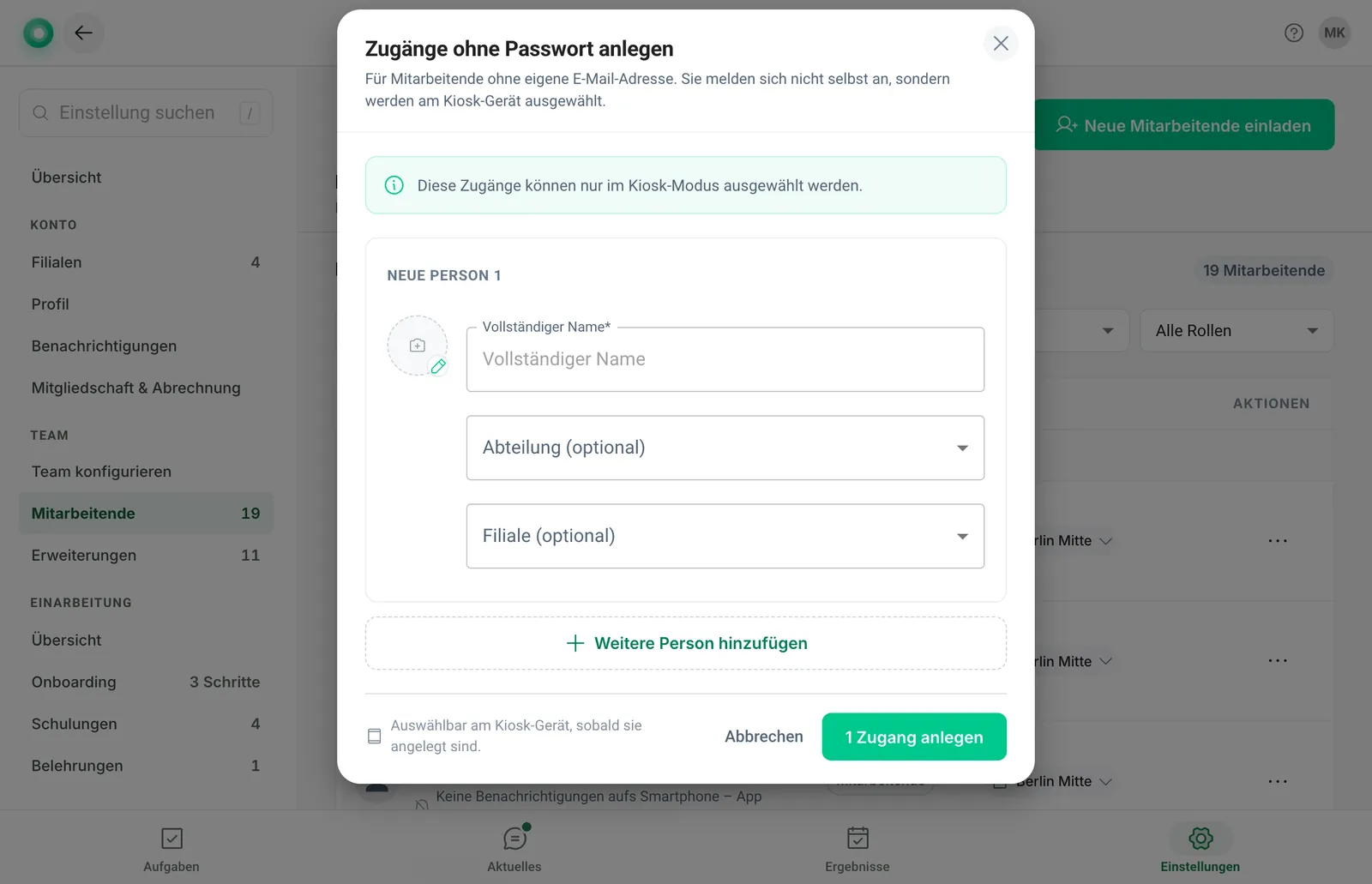
The new profiles appear in the member list straight away and can be selected the next time the kiosk device is opened — with several stores, on the device of their store. The note at the bottom of the form says so too: "Selectable on the kiosk device as soon as they exist."
Without a photo, only the name shows on the kiosk. In practice, picking by picture is much faster — it pays off to take the photos while creating the profiles.
What these accounts can and cannot do
| Login without password | Regular member | |
|---|---|---|
| Sign in on their own phone | no | yes |
| Selectable on the kiosk device | yes | only with the Employee role |
| Completions logged under their name | yes | yes |
| Own calendar (which days they worked) | yes | yes |
| Role can be changed | no, always Employee | yes |
| Emails (reports, reminders) | no | yes |
| Password reset | no (there is none) | yes |
| Takes a seat in your plan | yes | yes |
Because these profiles have no email address, gastrotodo assigns a placeholder address internally. Neither you nor your staff ever see it — where the member list normally shows the email address, these profiles show Signs in at the kiosk only.
Important: A login without a password still takes a seat in your plan — these are real people, not shared device logins. If there aren't enough seats for all the cards you filled in, the whole batch is rejected and nothing is saved. Either create fewer people at once or upgrade your subscription.
Adding credentials later
A casual helper becomes permanent, a kitchen hand becomes a shift lead — now that person does need their own login. You can do that without creating a new profile, and all past completions are kept:
- In the member list, open the three-dot menu next to the person and tap Create own credentials.
- Enter an email address and a password (at least 8 characters, twice) and tap Save credentials.
- Hand the credentials over in person — gastrotodo deliberately sends no email, because at that point nobody has confirmed that the inbox really belongs to that person.
From then on it's an ordinary member: they can sign in on their own device, reset their password, receive emails, and you can assign a role. If the person gets a role from Shift Lead upwards, they can no longer be selected on the kiosk device.
This only works in one direction. A member who already has their own credentials cannot be turned back into a passwordless profile — and the feature can't be used to overwrite an existing login either.
Common questions
Can I make such a person a shift lead? No. Roles can only be assigned once the person has their own credentials — permissions without a login make no sense.
Do they receive daily reports or reminders by email? No. There is no inbox to send to. Reports go to the team lead.
What happens when someone leaves? The same as for everyone else: Remove from team via the three-dot menu in the member list. They disappear from the kiosk selection screen; past completions stay in the reports.
Why can't I create these accounts? If kiosk mode isn't enabled yet, the button opens a note with the button Go to extensions instead of the form. In a sub-team of an organisation the button is missing altogether — members are managed centrally in the main team there.