
AI assistant
Radish, the AI assistant
Radish is the AI assistant in gastrotodo. You ask her a question about your business, and she answers from what your team keeps in gastrotodo: knowledge pages, files, tasks, device manuals — and this handbook. She names the source, so you can read up yourself.
Some businesses give the assistant a name of their own. You then see that name instead of "Radish".
Who switches Radish on?
Radish is an extension and starts out switched off. The team lead switches her on under Settings › Team › Extensions with the AI assistant tile. A window first explains what Radish can access and who processes the requests; only after Grant access is she on. Switching her off works any time in the same place.
Who may do this is set by the AI assistant permission under Roles & permissions — by default the team lead and everyone above.
Where do I find Radish?
Once switched on, Radish sits at the top left of the app — the radish icon — and in the sidebar of the knowledge base. Kiosk devices don't have her.
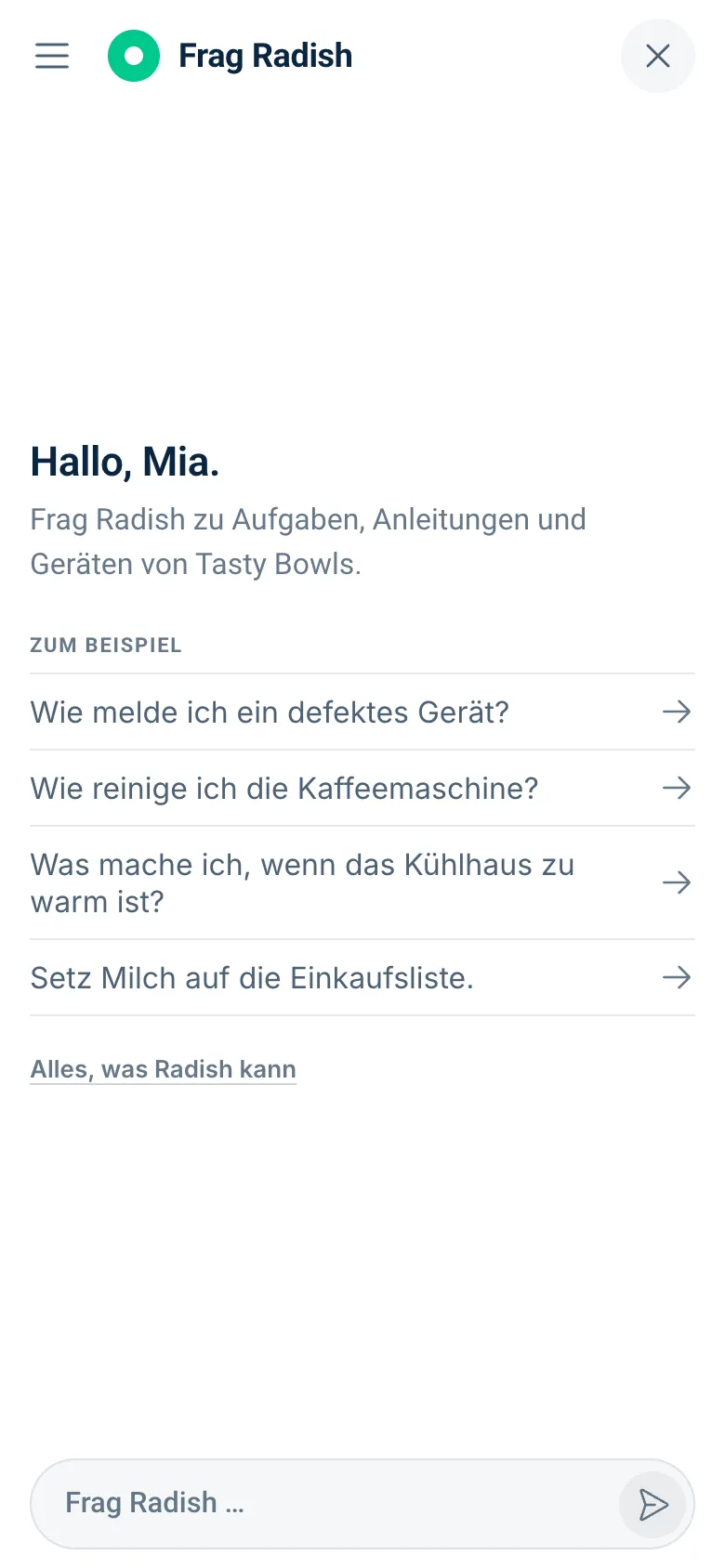
Everything Radish can do in the chat shows all her skills, each with an example to try.
Asking — typed or spoken
Type your question into the input field, the way you'd ask a colleague.
In the gastrotodo app you can also speak the question: tap the microphone (Speak) and ask. The text appears in the input field while you talk and is sent after a short pause. Speech is recognised on the device — the recording never leaves your phone. The first time, the phone asks for permission to use the microphone and speech recognition. The browser doesn't offer the microphone.
What Radish can do
- Look things up — Radish searches your knowledge documents, tasks, device manuals and the gastrotodo help, and names the source. "How do I clean the dishwasher properly?"
- Show passages — For operating steps, limits or safety notes she shows the section of the manual word for word, highlights what matters in yellow and jumps straight to the page if you like. "What do I need to watch out for when cleaning the combi steamer?"
- Add to the shopping list — Whatever is missing goes straight onto your team's shopping list. "Put two crates of milk on the shopping list."
- Create a task — Describe the task in a sentence, repetition included if you like. Radish asks for what's still missing (shift, department, rhythm) and creates it; check the time and branches afterwards. "Create a task: descale the coffee machine every Monday." Only the team lead can do this — for everyone else, Radish helps word the task so they can pass it on to the lead.
- Draft a training — A topic or a knowledge document becomes a training with slides and comprehension questions. It is saved as a draft: read it through before you publish it. "Create a short training on hand hygiene."
What Radish can't do
- Look things up on the internet. Radish only knows what your team keeps in gastrotodo, plus this handbook. She can't fetch current prices, news or other websites.
- Read photos or files from the chat. You can't attach pictures or files to the chat. If you have a printed or Excel template, say a cleaning plan, copy its text into the chat — for the team lead, Radish suggests tasks from it and creates them once approved. Files in the knowledge base, on the other hand, she knows.
What happens to your conversations
- Only you see them. Your conversations are listed under Chats and are visible to you alone — the team lead can't read them either. You can rename or delete each one.
- After 180 days without a new message a conversation is deleted automatically.
- Processed by OpenAI. To answer, gastrotodo sends your question and the matching content of your team to the AI service OpenAI.
- Colleagues' names are replaced. If your documents or tasks mention other team members by name, the names are replaced with "[Mitarbeiter:in]" before sending. Your first name and department go along so the answers fit you. Whatever you type into the chat yourself goes out as you wrote it — so don't put other people's names or personal details in there.