
Tasks
QR codes: put tasks on your equipment
Team leads create the QR code — staff don't see the button.
You can generate and print a QR code for every task. That way anyone — even without app access — can pull up the instructions. Just scan the code with a phone.
What's it good for?
- Stick it on equipment: A QR code next to the dishwasher, the oven or the fryer — when someone scans it, they instantly see the cleaning or operating instructions.
- Onboarding new team members: Instead of explaining everything verbally, the person scans the code and reads up.
- External service providers: The cleaning company can scan the code without needing an app account.
How to create a QR code
- Open a task (tap the title).
- At the bottom, tap QR code.
- The Store a task on a QR code or NFC tag window opens with the code and a link.
- Click Print to print the code. The button is only there on a computer, not on a phone.
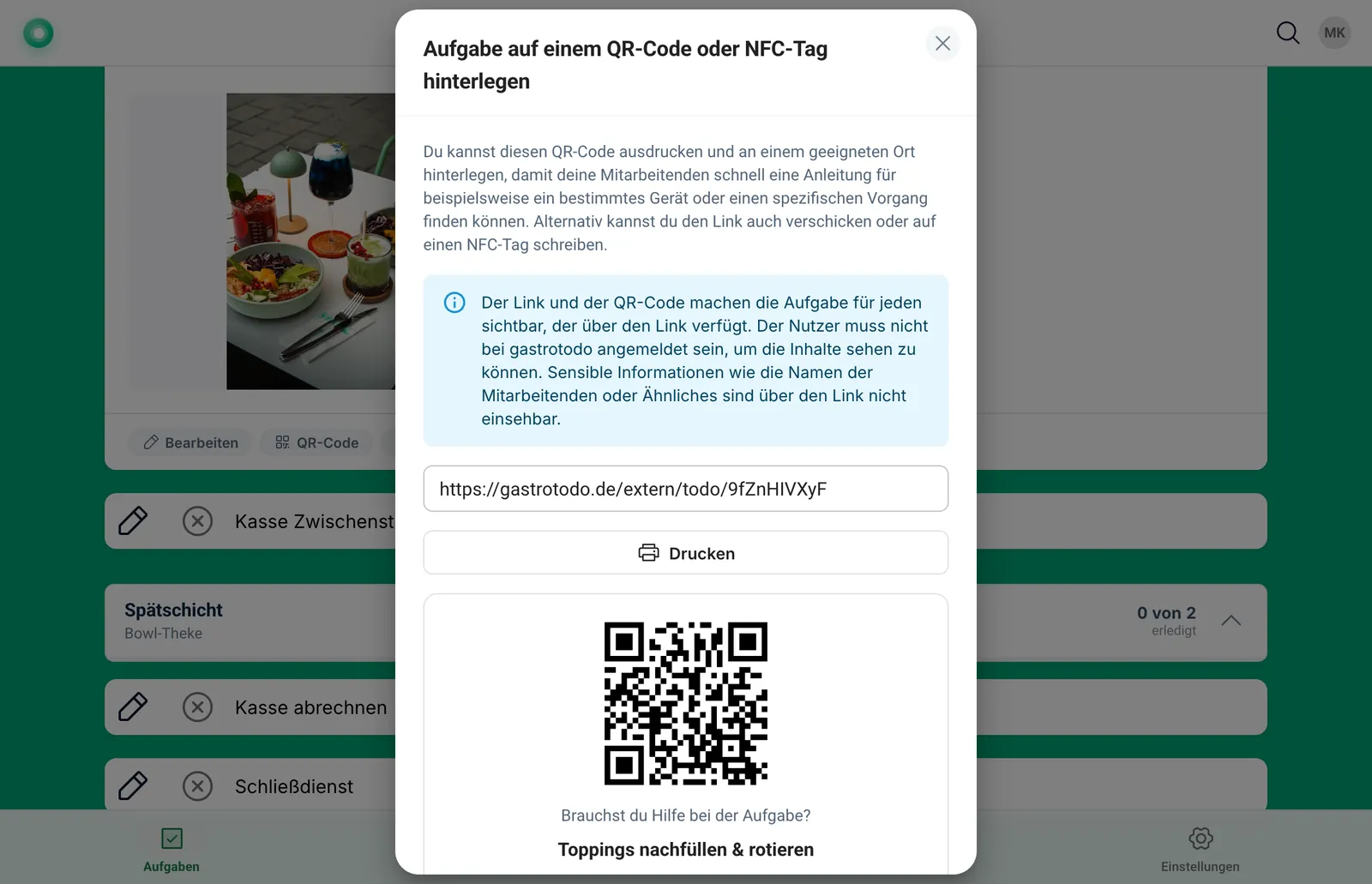
If the task isn't in today's list, you'll find it under Settings › Tasks & HACCP › All tasks — QR code sits in the row's menu (…). Very old tasks don't have a public link yet; for them the menu item is missing.
NFC tag instead of a QR code
Instead of printing the code, you can also write the link from the window onto an NFC tag — a small sticker you just tap with your phone instead of scanning. For that you need an NFC app on your phone that can write tags; gastrotodo itself doesn't write tags. Copy the link from the window and paste it there. You can of course also simply send the link to someone.
What the public page shows
The QR code shows the task on a public page — no login required. On that page you'll see:
- Title and instructions
- Images
- Linked devices and products with their manuals
- References to linked trainings, knowledge documents and lists — for lists only the number of open entries. Uploaded files such as manuals can be opened, knowledge pages only after signing in.
What's not visible: names and photos of team members (including the task's experts), whether, when and by whom the task was completed, the entries of linked lists and the link to the HACCP log.
Tip
Print the QR code on a sticker or laminate it. That way it survives damp environments like the kitchen.