
Team
Creating and tracking briefings
Briefings are mandatory instructions team members have to read and acknowledge — for example the food hygiene training under § 43 of the German Infection Protection Act (IfSG), workplace safety briefings or house rules.
Only the team lead can create briefings. Everyone on the team can read and acknowledge them.
Create a briefing
- Go to Settings › Onboarding & training › Briefings.
- Tap New briefing.
- Enter a title — e.g. "Hygiene training 2026".
- Write the text in the editor. You can format it (bold, lists, headings, links).
- Under Scope, set who the briefing applies to:
- Departments — with nothing selected it applies to the whole team; several departments are possible (allergens, for example, concern kitchen and service).
- Store — a specific store or All stores.
- Both can be combined, e.g. only the kitchen at the High Street store.
- Tap Create.
Recurring briefings
Some briefings have to be repeated regularly (e.g. the annual hygiene training). Turn on Recurring and pick a pattern — daily, weekly (with specific weekdays), monthly, yearly or a custom interval. The briefing then automatically reappears for everyone it applies to as soon as it's due again.
Acknowledge with a signature
Instead of a read confirmation you can ask for a signature. When creating or editing, turn on Sign instead of read acknowledgement under Acknowledgement. The signature is made right on the screen, with a finger or the mouse. The signature is stored and shows up in the acknowledgement overview next to name and date.
Work instructions
Work and operating instructions — say "Handling the grease trap" or "Using the slicer" — have their own section: Settings › Onboarding & training › Work instructions. You create them just like a briefing, with title, text, scope and recurrence, and here too you can ask for a signature instead of the read acknowledgement.
The difference: work instructions do not appear in the HACCP documentation. They show that someone knows a work instruction, but they are not part of the hygiene records for the food inspector.
Looking for a place for a work instruction your team should sign? A work instruction with signature is the right fit — not a task.
What do team members see?
When a briefing is due, it shows up on the tasks page — with a purple book icon and the label "Briefing to acknowledge". The person
- taps the briefing to expand it,
- reads the text,
- taps I have read and understood this briefing.
After that, the briefing disappears from the list.
You can also add briefings and work instructions to the onboarding. New team members then confirm them right after signing up, before the rest of the app unlocks. There the text opens full screen, and confirming only works once the person has read to the end.
Tracking: who has acknowledged?
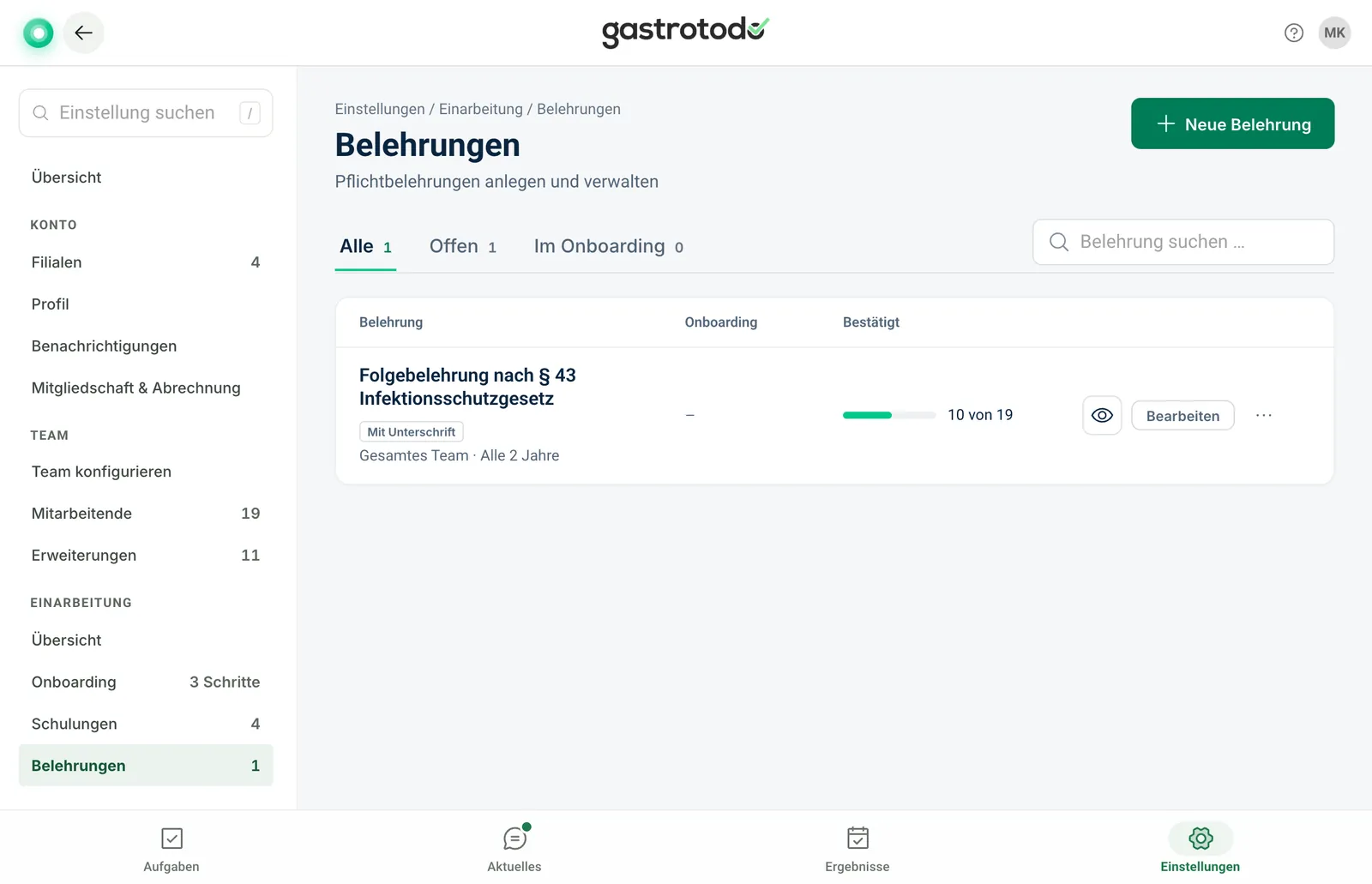
Under Settings › Onboarding & training › Briefings all briefings are listed in a table. The All, Open and In onboarding tabs and the search help you find the right one quickly. The Confirmed column shows how many of the people it applies to have already confirmed it (e.g. "3 of 5"); if a recurring briefing is about to expire, that is shown below. The Onboarding column shows which step of the onboarding it is.
Tap a row or View. The briefing opens the way your team reads it, and below it you can see:
- who has already acknowledged it and when,
- how many times (for recurring briefings),
- who has not yet acknowledged it.
Edit lets you change it. You track work instructions the same way under Settings › Onboarding & training › Work instructions.
The briefing acknowledgements also feed into the HACCP documentation — so you can prove to the food safety authority at any time who was briefed and when.
All proofs at a glance
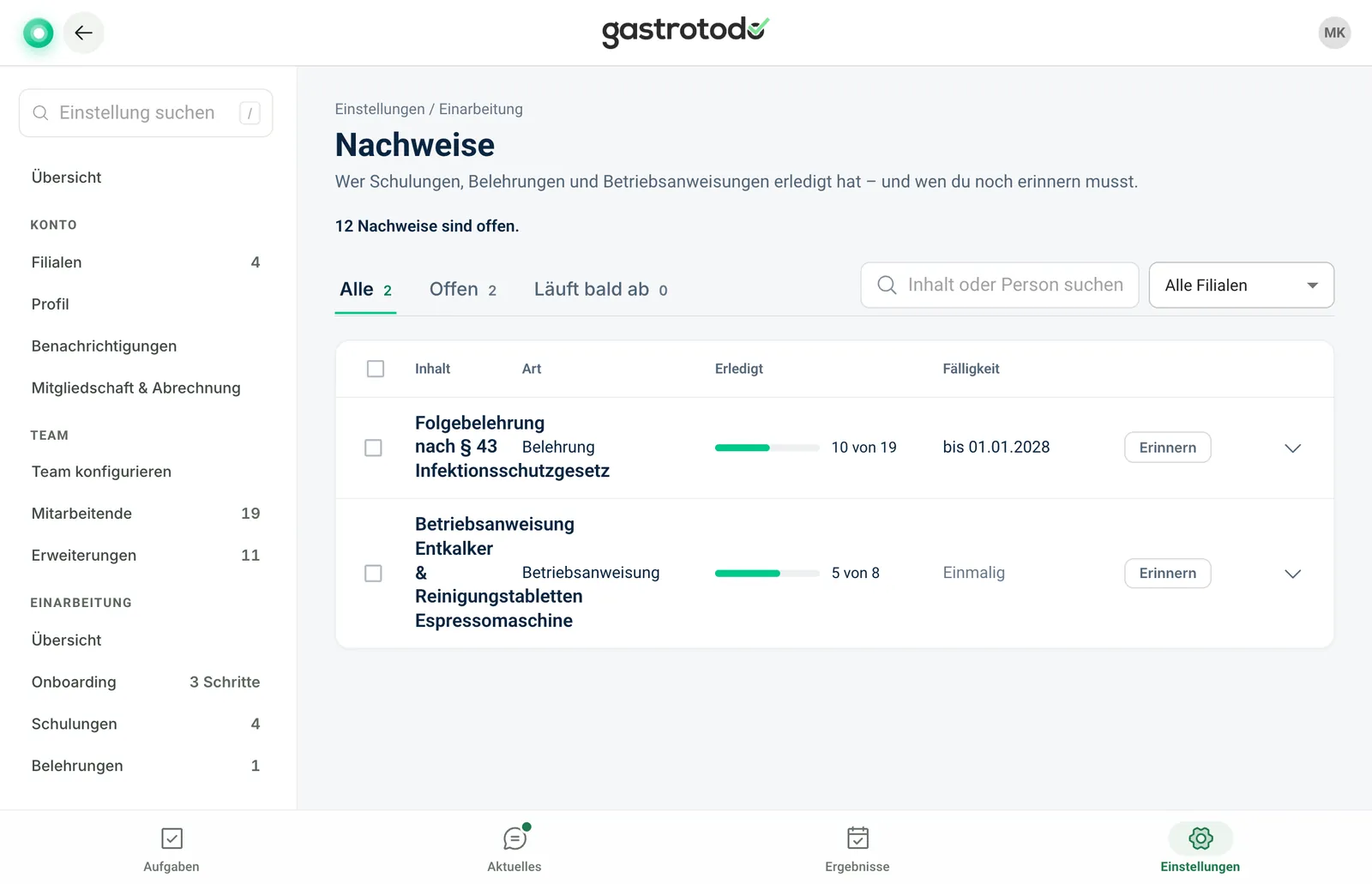
Under Settings › Onboarding & training › Proofs, briefings, work instructions and the trainings in the onboarding are listed together in one table: what it is, how many people have completed it (e.g. "4 of 6") and until when the proof is valid. At the top you switch between All, Open and Expiring soon (within the next 30 days), search for content or a person and — if you have several stores — pick a location. Expand a row to see the people: completed on …, open or expired.
The Overview under Settings › Onboarding & training sums this up: how much of the mandatory content is done across the team, how many proofs are open, and under Needs attention what is still open, about to expire or still a draft.
Remind
Open content has a Remind button — on the overview and on the proofs page. Everyone who hasn't confirmed or finished that content yet then gets a notification on their smartphone. On the proofs page you can tick several items and remind them all at once with Remind all.
Good to know:
- Reminders only work with the Push notifications extension.
- They only reach people who have smartphone notifications on and haven't switched off Open briefings in their notification settings. You can see who gets them in the Members list.
- The same content is reminded at most every six hours. A second click won't send anything twice.
Briefing or training?
In the same area (Settings › Onboarding & training) you'll also find Training next to the briefings: visual step-by-step guides made of slides with images and videos — e.g. "How to clean the coffee machine". The difference:
- Briefing — a mandatory text everyone it applies to has to acknowledge with proof. The acknowledgements feed into the HACCP documentation.
- Training — learning content to flip through, ideal for new team members. At the end the person finishes the training. For trainings in the onboarding you can see under Proofs who has finished them. If you want to know whether anything stuck, add a quiz.
A training runs step by step. On a phone each slide fills the screen; tapping the left third goes back, anywhere else goes forward. On a computer the list of all steps, the slide and a column with text and buttons sit side by side. Pictures can be viewed full screen with Enlarge; landscape pictures — say a photo of the till — are shown whole instead of cropped. With a video, the text sits next to it (at the bottom on a phone), never on top of the video. That is why the editor takes the title and text of a video slide in two separate fields.
Videos you upload as MP4 or MOV are converted in the background into a smaller 1080p version by gastrotodo, so they start right away even on your venue's Wi-Fi.
Quiz at the end of a training
A quiz is a few questions that come after the last slide. You can write the questions yourself or have the AI assistant suggest them from the slides.
Only trainings have a quiz. A briefing is read and acknowledged — there are no questions.
Writing questions yourself
- Open the training for editing.
- On a phone, tap Questions at the bottom — if the training already has questions, the count is shown on it. On a computer, switch to the Training tab on the right and, under Final quiz, tap Add question or Edit questions.
- Tap Add question and write the question.
- Enter the answer options below it — at least two; Add answer adds more.
- Tick the box in front of every correct answer. More than one may be correct.
- If you like, add an explanation. It appears after someone has answered — whether right or wrong. This is where the why goes: not just "2 °C", but also why not 7 °C.
- Tap Done and save the training as usual.
A question with no correct answer ticked doesn't count — nobody can answer it correctly.
Having the AI assistant suggest questions
If the AI assistant is switched on for your team (the AI assistant card under Settings › Team › Extensions), the questions window shows a Suggest questions button at the top. The assistant then reads the text on your slides and suggests questions with answers. The suggestions are added to the end of the list.
Read them before you save. The assistant only knows what is on the slides — not your business. A question that is slightly off is worse than none: whoever answers it "wrong" may have just learned the right thing.
The button only appears when the slides contain text. The assistant can't build questions from images and videos alone.
Pass mark or self-test?
Below the questions you decide whether the quiz decides anything:
- Without the tick at "Required to finish" the quiz is a self-test. Everyone sees what was right and can finish the training afterwards — even with every answer wrong. Before the first question a self-test can also be left out with Skip; the training then counts as finished all the same.
- With the tick you enter what percentage has to be correct (70 % by default). Anyone below that can't finish the training yet and gets no record. They can answer the questions again straight away, as often as needed.
A question only counts as correct if exactly the right answers are ticked — no more, no fewer. There are no half points: someone with three out of four right has usually ticked a wrong one too, so took something wrong for right.
What a failed quiz does depends on whether the training is part of the onboarding (the In onboarding switch in the training editor):
- New team members in onboarding: the app stays locked for them until the quiz is passed — the training is a step of their onboarding.
- Everyone else on the team: they keep working as usual. The training stays above their task list until the quiz is passed.
If the training isn't part of the onboarding, a failed quiz locks nobody out.
What do team members see?
That questions are coming at the end can be seen in the list of all steps: its last entry is Final questions, with the number of questions. On the last slide the button says To the questions. A card then announces how many questions follow and what percentage has to be correct — or that the answers don't count towards completion. Start questions begins the quiz.
The questions come one at a time ("Question 1 of 4"), in the same style as the slides. The person ticks an answer, taps Check answer and sees right away whether it was correct — with your explanation, if you wrote one. Next question moves on; after the last question it's Finish.
If a question has only one correct answer, only one can be ticked. If several are correct, the question says "More than one answer can be correct."
Trying it out first
Use Preview in the editor to run through the training including the quiz yourself. At the end you see how many questions you got right. No completion and no record are saved — you can test as often as you like.
Tip
Keep the text short and easy to understand. Remember that not everyone on your team may speak English (or German) as a first language. gastrotodo supports several languages — but the briefing text itself stays in whichever language you write it in.