
Tasks
Completing tasks
The essentials in 10 seconds
Tap the checkbox. Done. Your name and the time are saved automatically.
Different task types
Not every task is the same. Depending on what your team lead has configured, the checkbox looks different:
Normal task — Just tap it. Tick set, on to the next one.
Task with photo — Instead of a checkbox you see a camera icon. Tap it, and on a phone the camera opens straight away — picking an old picture from your gallery is deliberately not possible here, the proof is meant to be fresh. (On a computer you pick a file instead.) Take the photo and send it off. The task is only done once the photo has been uploaded.
Task with a measurement — Instead of a checkbox you see a block with a pencil. Tap it, enter the measurement (e.g. the temperature), and confirm. Details: Completing HACCP tasks.
Task with a signature — Instead of a checkbox you see a pencil. Tap it, sign with your finger on the screen and tap Confirm. This exists for HACCP tasks as well as normal tasks, for example the till close.
Task with a quality rating — Instead of a checkbox you see a star icon. Tap it and pick a rating from 1 (very poor) to 10 (very good), then Save rating. The task can't be completed without one. If the task also requires a photo (then it shows the camera icon instead of the star) or a note, the same dialog asks for those too — it only saves once everything is there. The rating then shows up in the task's completion history.
What the list shows you
After you tick a task off it stays in the list, and a small chip with profile picture and time appears to the right of the title:
- Green chip — done.
- Orange chip with a warning icon — done, but with a deviation: the reading of a HACCP task was outside the limits, or a corrective action was recorded. That way a fridge that's too warm stands out right in the list, not only in the daily report.
- Red chip, red X — reported as not done (cancelled). The reason shows in small print under the title.
- Grey icon — not needed, i.e. there was nothing to do today. Here too, the reason shows under the title. More on that: Cancel a task.
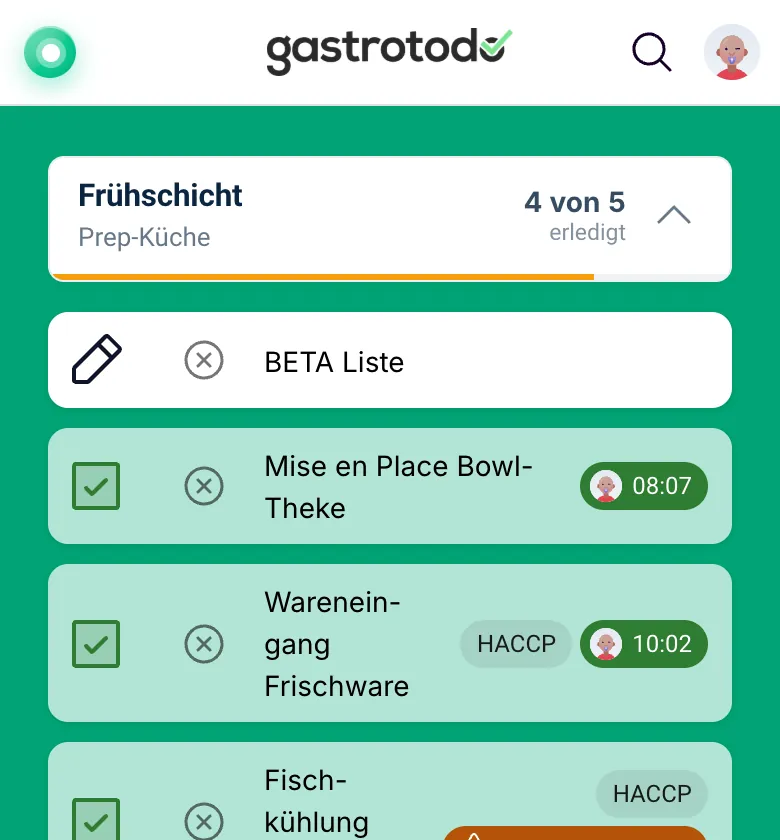
If your team lead has set a time by which the task should be done, it shows as a small clock chip on the task. Once that time has passed and the task is still open, the chip turns red with an alarm-clock icon, and the task moves up within its shift. There's no push or e-mail reminder for this.
At the top of each card you see the progress, e.g. "4/7". Only tasks that were actually done count: tasks reported as not done count as open, tasks that weren't needed aren't counted at all.
What happens when I tap a task?
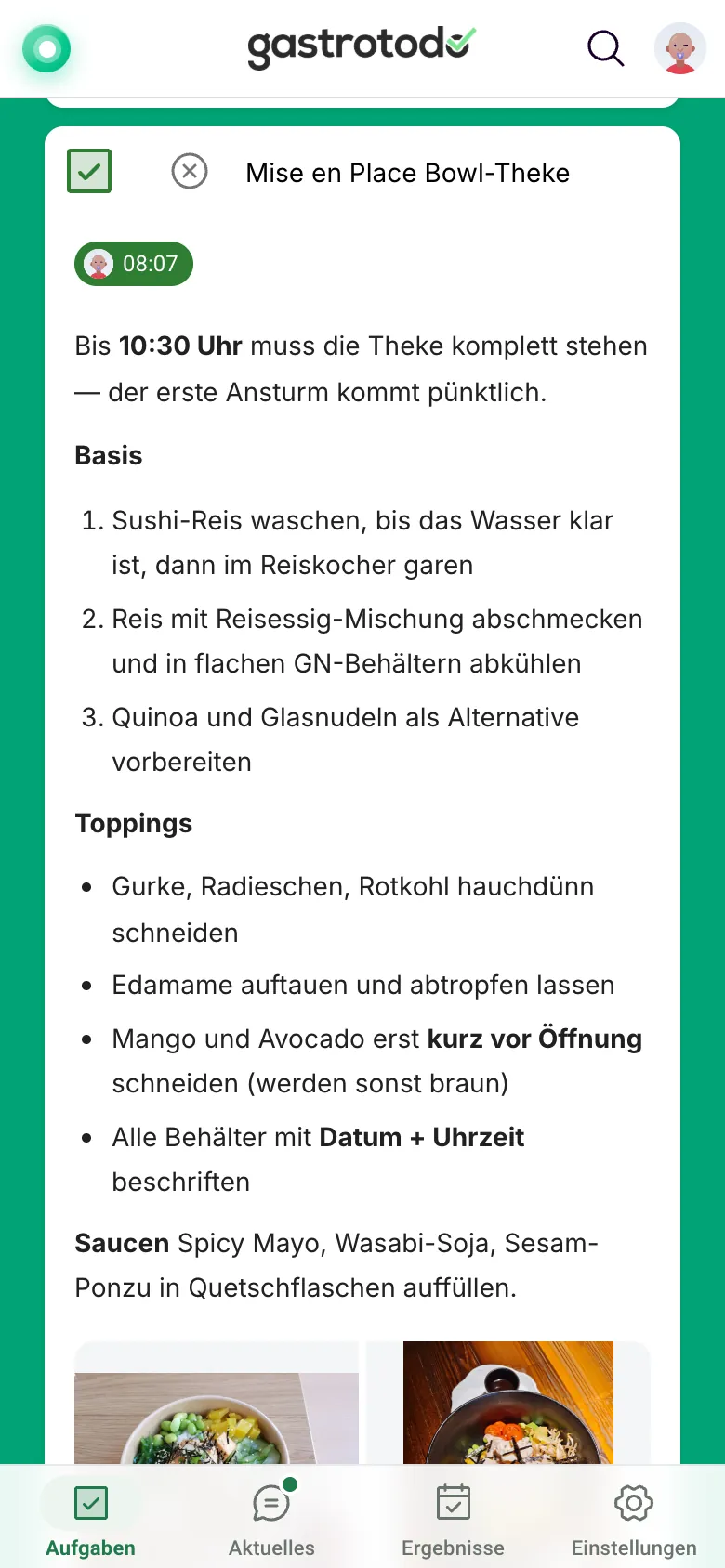
Tap the title (not the checkbox) to expand the task. Then you see:
- The full instructions — how the task should be done
- Linked products — e.g. which cleaning agent or device is needed, with a link to the manual
- Images — if photos are stored as guidance
- History — the latest occurrences as small bars; tapping them opens the full history (see below)
- Who did it? — the history of every completion with name, time and, where applicable, measurement or photo
- Experts — who has completed the task particularly often (see below)
A task's history
In the expanded task, a small card shows the latest occurrences as bars: green done, red cancelled, grey not needed, a short stub for "no response". Tap the card and the History opens. If there are no occurrences yet, it says "No data yet".
The history covers the last 30 days of this task at this store:
- One bar per day — done, issue (reading out of range or low rating), not done, not needed or not planned. If the task is still open today, today's bar is only dashed.
- Temperature curve — for tasks with a reading (from five readings in the period), the values of the 30 days as a line, with the target range (Target) behind it.
- Key figures — how many occurrences were completed (not-needed ones aren't counted), the usual time, for readings the range of values and whether all were within range, for ratings the average.
- Filters — All, With photos, With readings and Issues. Only the filters that would currently show something appear.
- Entries — sorted into "This week", "Last week" and months, each with time, person, reading, rating, photos and note where available. Several days in a row without a response are grouped into one line ("3 × no response"); Show days one by one expands them.
Experts
If someone has completed a particular task more than 10 times and has the most completions for that task in the team, they are automatically marked as an expert for that task. It's pure recognition — no extra rights, no obligation.
You can see the expert in the expanded task detail view with picture, name and the label "is an expert in this task." If there's no expert yet, nothing is shown.
Expert status is recalculated automatically on a regular basis — you can't assign or remove it manually. The point: new team members can see at a glance who to talk to with questions about a specific task.
Undo
Ticked something by accident? Just tap the checkbox again. The completion is removed.
If the completion records something — on a HACCP task, a reading, a signature, a photo or a note — the app asks first: Take this completion back? The message names the time and, where there is one, the reading, because the entry is deleted along with everything in it and no longer appears in the HACCP report. It's only gone once you tap Take back. Plain tick-off tasks are still undone with a single tap.
Overdue tasks
If a task from yesterday wasn't completed, it appears today with the label "Overdue" and the date it has been open since. As soon as you tick it off, the label disappears. Cancelled tasks and tasks reported as not needed don't become overdue — they're already closed.
If a task isn't done on Monday but gets completed on Tuesday — then on Wednesday the task is no longer marked as overdue. The overdue marker always starts from the last day on which the task wasn't completed.
On a rest day the list shows no tasks at all for that store, not even overdue ones — it says Today is a rest day instead. Tasks that were scheduled for a rest day don't become overdue afterwards either. Team leads add rest days in the calendar: Calendar.
How long does a task stay overdue?
An overdue task is shown in the task list for up to 6 days after its original due date. After that it disappears from the day view so the list doesn't get clogged up with old entries.
Example: a task from Monday is visible as overdue from Tuesday through Sunday. From the following Monday onwards it no longer appears.
Missed tasks are kept permanently in the daily reports (the "Results" tab) though — there you can also see after the fact which day had gaps. If you catch up on an overdue task, it stays missed on the day it was planned for and counts as done on the day you completed it.