
My account
My profile
You manage your personal profile under Settings › Account › Profile. Changes you make here only apply to you — not to your team.
What you can change
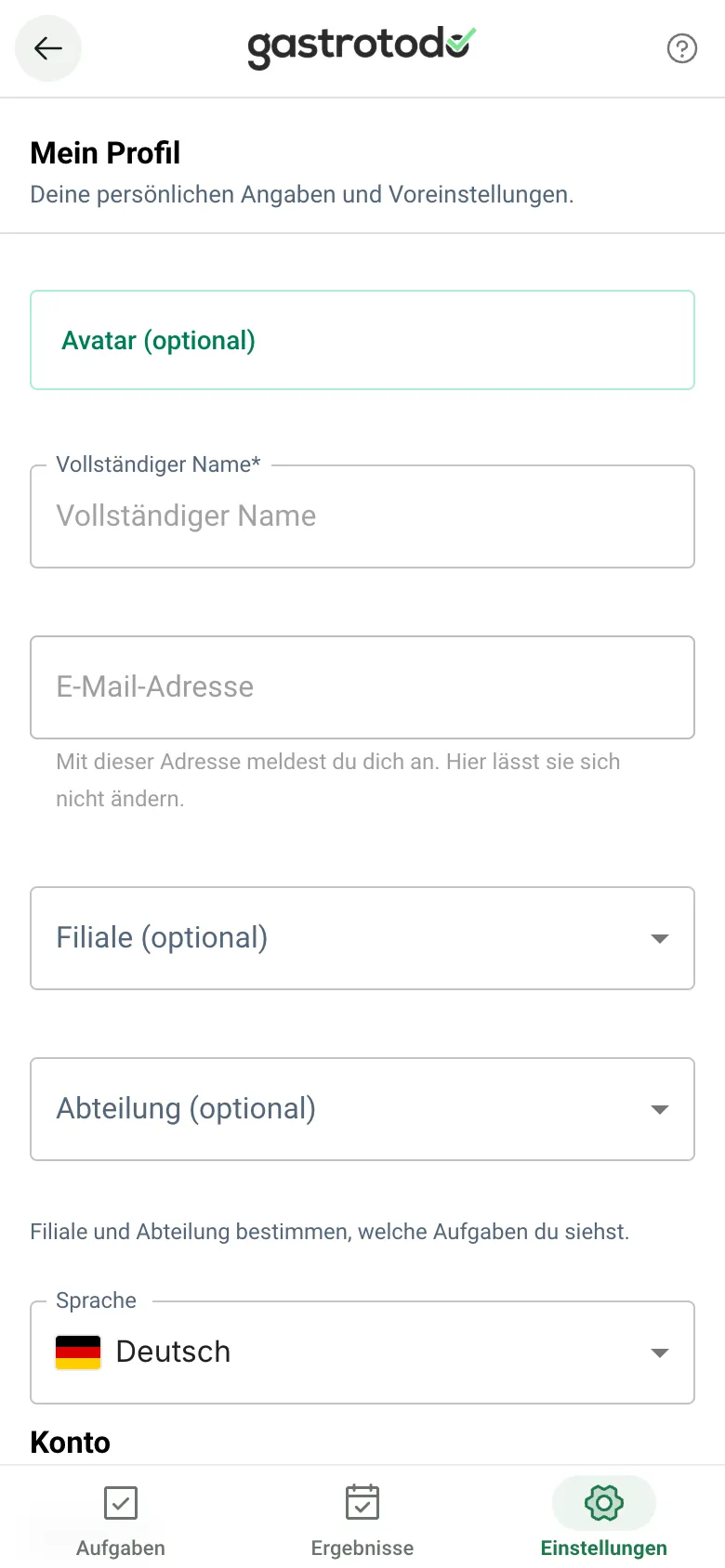
Full name — How your name appears on task completions, comments and reports.
Avatar — Tap the image field and pick a file or take a photo directly. Without a picture, your initials appear instead. The avatar shows up, for example, in the member list and on task completions.
Language — gastrotodo is available in German, English, Spanish, Serbian, Russian, Turkish, French, Vietnamese and Dutch. Every team member can pick their own language — the app translates all menus and system texts. If a text is ever missing in a language, the app shows it in English. Content written by the team lead (such as training instructions) stays in the original language. Tasks are the exception, see Translated tasks below.
Separate from that is the team language — German, English or Dutch. It's preselected as the language for new team members, and the team's emails are sent in it (in English for Dutch, because the emails only exist in German and English). Team leads set it under Settings › Team › Configure team in Team default language.
Store — which location do you work at? Relevant when the business has several stores. With this set, you immediately see the tasks for your store when you open the app.
Department — which departments you're assigned to (e.g. kitchen, service). Among other things, this determines which training instructions are relevant for you.
Translated tasks
The title and description of every task are translated automatically into the language you picked in your profile. This happens in the background: after a task is saved or a language is changed, it takes a few minutes until the translation shows in the daily list. Tasks are only translated into languages somebody in the team has picked, and never into the team language itself.
The app shows the translated tasks in the daily list. All tasks and the task form always show the original text, as the team lead wrote it.
New and changed tasks are always translated. When the team lead switches on the Automatic task translation extension (Settings › Team › Extensions), all existing tasks are translated at once as well.
Notifications
You don't set up emails and push messages in your profile, but under Settings › Account › Notifications. There, Email notifications switches emails off or back on. Details: Notifications.
Changing your password
There's no direct "change password" form inside the app. Sign out, tap Forgot your password? on the login page, enter your email and follow the link from the email — that's where you set a new password.
Signing out
Top right in the app you'll find your avatar — tap it and pick Sign out (door icon) from the menu. Alternatively, under Settings › Account › Profile you'll find the Sign out button at the very bottom, in the Account section. Either one signs you out on this device and brings you back to the login page.
Who can change my profile?
You always can. The team lead can also edit your profile via member management — name, avatar, store, department, language and role.