
HACCP
Exporting and sharing the HACCP documentation
Everything your team does as HACCP tasks is automatically collected by gastrotodo in a print-ready log — sorted by check type, with a table of contents, measurements, signatures and briefings. Exactly the way the food inspector wants to see it.
Where do I find the documentation?
Two ways:
-
Settings › Tasks & HACCP › HACCP Audit (for team leads). The page bundles everything you need to show at a food inspection — more on it in the next section.
-
Knowledge base: In the folder Business › HACCP documentation you'll find the documentation for each store. Tap it to open the preview.
The "HACCP Audit" page
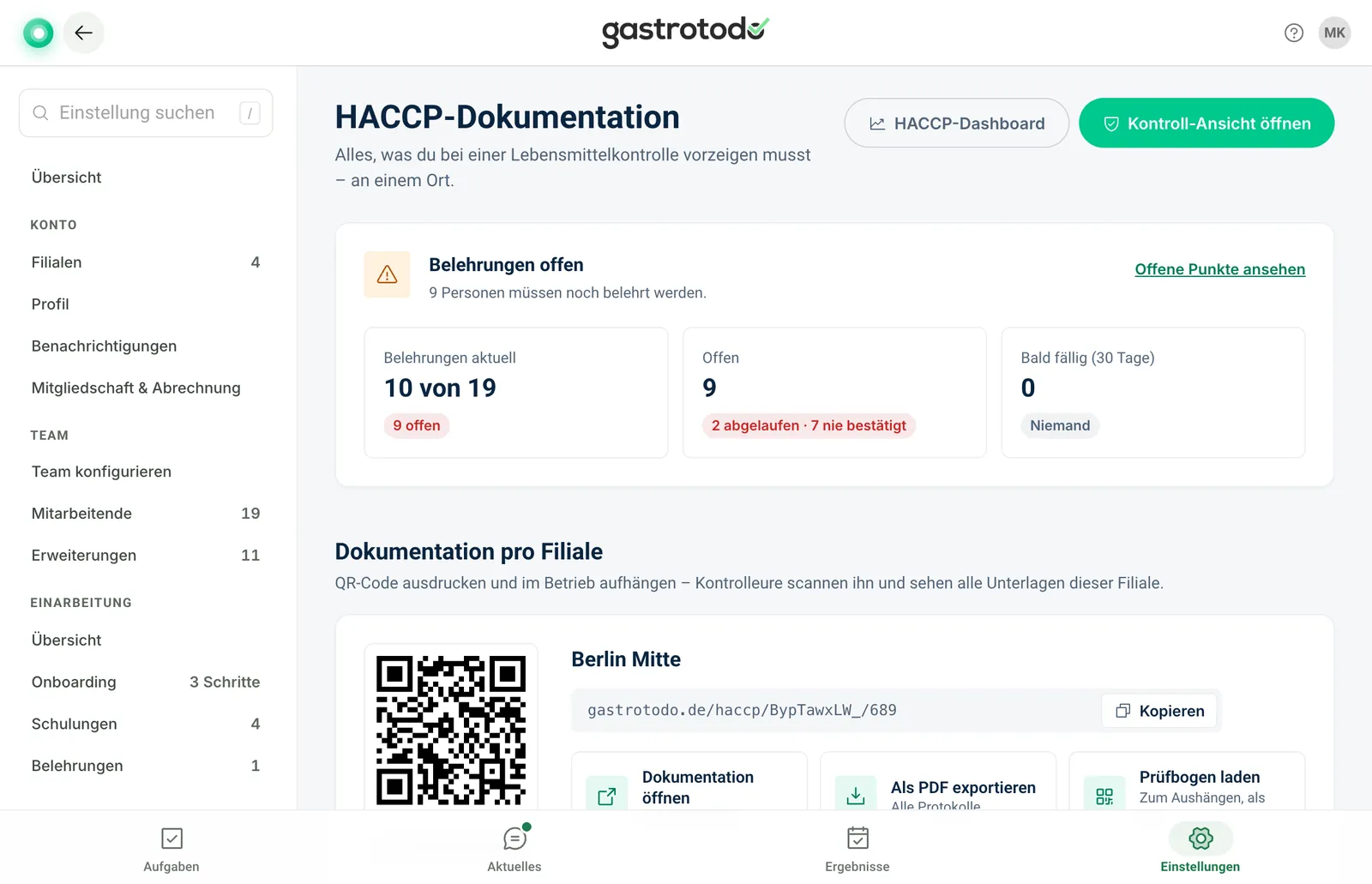
From top to bottom:
- Header with two buttons: HACCP dashboard opens the HACCP dashboard, Open inspection view opens inspection mode (see below).
- Briefing status — a card that only shows who has confirmed their briefings. At the top it shows the state ("All briefings up to date" or "Briefings open"), below it three tiles:
- Briefings up to date — e.g. "18 of 20" team members
- Open — how many still have to confirm something, split into "expired" (confirmed once before) and "never confirmed"
- Due soon (30 days) — who has a briefing coming due again within the next 30 days, with the next date
- Documentation per location — one card per store with:
- the documentation's QR code and the Print notice button (prints the inspection sheet with the QR code, to put up in the business)
- the link to the documentation and Copy
- Open documentation — the online view right inside the app
- Export as PDF — the full documentation with all protocols
- Download inspection sheet — the inspection sheet to put up, as a PDF
- on iPhone and iPad also Add to Apple Wallet (see below)
- Folders in the knowledge base — your HACCP folders with the number of files and the last change. The Briefings card opens a table: for each person the last briefing, when the next one is due and the status — with the tabs All, Open, Due soon and Valid, a search and a location filter.
What's in the log?
The log is a multi-page A4 document in the style of a paper form.
Every sheet (except the cover) has a header strip at the top with Business, Section (e.g. "Briefing" or "Storage / Cooling temperatures"; if several check types share a sheet, their short names such as "Cooling · Cleaning"; the table of contents has no section field), As of (date and time it was retrieved) and Sheet (e.g. "12 / 36"). At the bottom you'll find the link to the documentation and "Page X of Y". That way even a single printed sheet can be traced back.
The content:
- Cover page — logo, the title "HACCP documentation", the business's name and address. At the bottom a strip with the Contents (e.g. "4 briefings · 12 protocols"), the date range of the Entries, As of and the number of Sheets, next to it a QR code to the document.
- Table of contents — grouped by category: first the briefings, then each check type, each with a count (e.g. "Briefings · 4"). Each entry shows topic, period and page.
- Briefings — title, who it applies to (store, department or "Entire team"), the text and the Confirmations: who last confirmed it and when, with a signature if anyone signed. If the text contains ❌ or ✅, the document prints them as a red × and a green ✓; your saved text stays unchanged.
- Protocols — one table per task, sorted by check type. Short protocols share a sheet; long ones run over several sheets and are marked "Part 2 of 3". Depending on the check type, the table contains:
- Date and time
- What was checked (location/object, for incoming goods e.g. the supplier)
- Measurement
- Corrective action (if needed)
- Name of the person who checked
- Signature (if the task requires one)
Limits and deviations
Above every measurement table you'll find the task's limit — e.g. "Limit ≤ 7 °C", or with two bounds "Target range −25 to −15 °C". The same value also appears in the head of the measurement column.
Only real deviations are marked red: the row gets a red bar at its start and the reading a red cell. Values within the limits stay white. Below the protocol's title you can see how many deviations it has (e.g. "3 deviations").
Columns that only appear when needed
- Location (for cleaning "Location / Room / Device") only appears for cooling temperatures, cleaning, pest control and frying oil when the task has a location or a row carries a note.
- R/D (cleaning or disinfecting agent) only appears in cleaning protocols when a cleaning agent or disinfectant is linked to the task.
Occurrences reported as not needed
If an occurrence was reported as not needed (e.g. incoming goods check without a delivery), it shows up as its own grey row in the protocol: "Not needed" with the reason given and the person's name. That way the inspector sees why there's no reading on that day. More on this: Completing HACCP tasks.
Export as PDF or print
The way to paper is the PDF export: on the HACCP Audit page, next to the store, Export as PDF — or in inspection mode Full record (PDF). Download it and print it if needed. The PDF is laid out for A4 — page breaks, font sizes and margins are all set up.
Sharing via link
Every log has a public link. You'll find it under Settings › Tasks & HACCP › HACCP Audit for each store as a QR code and as a copyable link. That way an inspector, for example, can open the log on their own device without having to sign in to gastrotodo.
Adding it to Apple Wallet
On an iPhone you can add each location's documentation to Apple Wallet as a card. When an inspection comes up, the QR code is one swipe away — no need to open the app and dig through the settings.
Only team leads (and the roles above them) see this button.
How it works:
- Open Settings › Tasks & HACCP › HACCP Audit.
- Next to the location, tap Add to Apple Wallet.
- In Apple's sheet, tap Add.
This works in the gastrotodo app and in Safari on iPhone and iPad. On a Mac, on Android and on a computer the button doesn't appear.
What's on the card: "HACCP documentation" at the top, the location and the business below, and a QR code. The back explains how it works and shows the direct link.
What happens when it's scanned: the QR code opens the location's public HACCP documentation in the browser — the same page as the QR code on the inspection sheet. The inspector doesn't need to sign in.
Do I need to update the card? No. The card deliberately carries no date; the link always shows the current state. Adding it a second time replaces the old card. The card can't be forwarded (e.g. via AirDrop), because the link on it works like an access key.
Is an inspection taking place? (Inspection mode)
When the food inspector is at the door, every minute counts. That's what inspection mode is for — a view that bundles all the documents needed for the inspection:
- Open HACCP documentation — the documentation of the store being inspected, right inside the app
- Share link — the inspector opens the log on their own device
- Full record (PDF) for download
- Briefing records — the briefing confirmations inspectors often ask for as well (not in kiosk mode)
Anyone who may view HACCP but not manage it (with the built-in roles: Employee and Shift Lead) finds the red card Is an inspection taking place? in the Settings right below Help & Support — so the early shift can get to the documents quickly even without a team lead around. The same quick access exists in kiosk mode. Team leads open it via Open inspection view on the HACCP Audit page.
Justified omissions
If a HACCP check couldn't be carried out (e.g. because someone was off sick or equipment was broken), you can justify the omission in the HACCP dashboard. Justified omissions appear in the log right after the task in question, as their own table "Justified omissions: ‹task›" — with date, reason, risk assessment, immediate measure and the responsible person with their signature. More on this: HACCP dashboard.
HACCP dashboard
The HACCP dashboard gives you an automatic audit rating of your documentation, all warnings, missing entries and justified omissions at a glance. You get there via Settings › Tasks & HACCP › HACCP Audit › HACCP dashboard.
Tip for the inspection
Don't wait until the inspector is at the door. Check the HACCP dashboard regularly — there you can see immediately where the gaps are and how the audit score is doing.