
Knowledge base
Knowledge area: documents, knowledge pages and manuals
The knowledge area is your team's shared memory: keep everything here that would otherwise live on slips of paper, in WhatsApp chats, or only inside one person's head. Write your own knowledge pages, upload files (PDFs, images, manuals), organise everything in folders — and link it to what's already happening elsewhere in the app (HACCP, trainings, devices and manuals, tasks).
Where do I find it?
Via Settings › Onboarding & training › Knowledge base or directly under /app/documents.
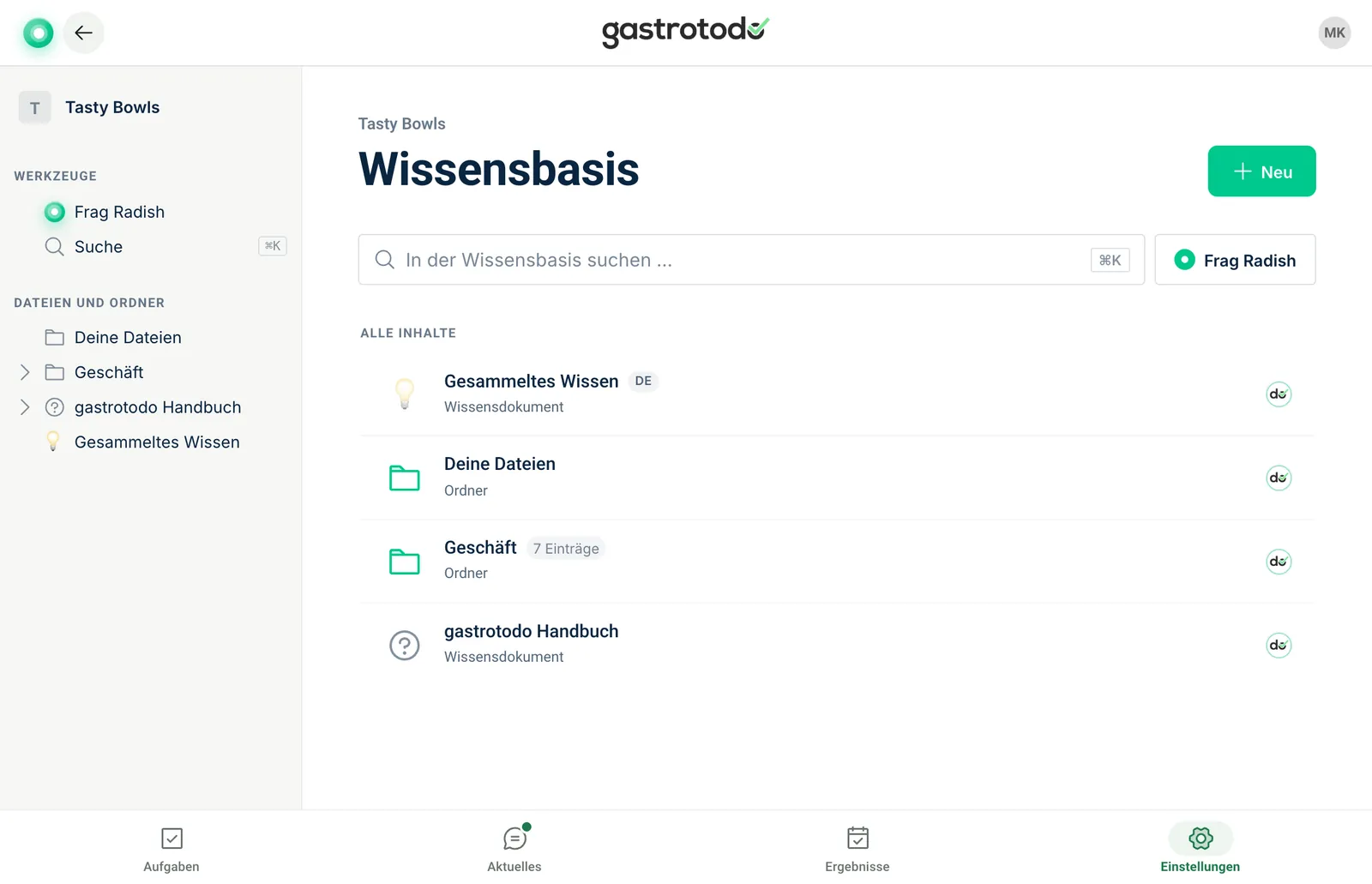
What you'll see
- Knowledge pages — your own texts written in gastrotodo, with headings, lists, images, tables and links to other pages.
- Files — anything you upload: PDFs, images, data sheets, cleaning plans, training videos, etc.
- Folders gastrotodo fills itself — with what's in the app anyway (see "How the knowledge base is organised" at the very bottom).
What every team member can do
- Browse folders and knowledge pages
- Open files (preview, full screen on a phone)
- Download files
- Use the Search the knowledge base … field to search by name — for knowledge pages also in the text
What only team leads can do
- Create and edit knowledge pages
- Upload files (via New or drag & drop)
- Create, rename, and nest folders
- Delete or move entries
The New menu in the top right offers:
- Upload file
- Scan object — only in the app on iPhone and iPad with LiDAR (see "Scanning an object yourself" further down)
- New folder
- New knowledge document — an empty knowledge page
- New knowledge document from template — a knowledge page with a ready-made structure (see below)
Creating a knowledge page
- New › New knowledge document.
- Enter a name and tap Create — the page opens ready for editing.
- Write — using headings, lists, tables, bold, links to other knowledge pages, embedded images.
Changes aren't saved on every keystroke: as soon as you change something, the hint You have unsaved changes appears at the bottom with a Save button. Done in the top right saves as well and switches back to the read view; a short "Saved" message confirms it. To keep writing, tap Edit (pencil) there.
From a template
With New › New knowledge document from template you don't start with an empty page but with a ready-made structure you just fill in. You can choose from Recipe, Allergens, Phone list, Menu planning and Complaints & returns. The page lands in the folder you're currently in; if the name already exists there, gastrotodo adds a number.
Let the assistant draft a HACCP concept
If the AI assistant is switched on for your team and you use HACCP, the same picker has a section at the bottom called Generate documents from existing knowledge with Generate a HACCP concept draft. The assistant then looks at your HACCP tasks — variant, limits, frequency, shift and department, linked cleaning and disinfecting agents — plus your briefings, work instructions and trainings. From that it writes the draft of a HACCP concept: business and scope, responsibilities, hazard analysis, a table of control points with limits and monitoring, corrective actions, basic hygiene, training and briefings, verification — and under Open points, what is still missing, such as a goods-receipt check or a linked disinfectant.
This takes up to a minute. A knowledge page called HACCP concept (draft) is then created in the current folder and opens for editing. A note at the top says when and from what the draft was written.
A draft is not a finished concept. The assistant only knows what is in gastrotodo — not your kitchen, your suppliers or your routines. Check every section, add what is missing and change what isn't right. Team members' names are not sent to the AI service.
Linking other pages and folders
In the editor you can insert another knowledge page or a folder as a link card: type [[ or use the Link a page or folder button in the toolbar and pick the target. The card shows the title, icon and a short excerpt — for a folder, what's inside it. The excerpt stays up to date when the target changes.
If the target is deleted or someone isn't allowed to see it, the card says "No longer available". Use Remove link to take it out again.
Uploading files
Two ways:
- New › Upload file — pick the file(s).
- Drag & drop — drag files onto the page or into a folder. A dashed border shows where to drop.
Multiple files at once are no problem. Maximum size per file: 250 MB.
Turning Word and ODT files into knowledge pages
A Word file (.docx) or a LibreOffice file (.odt) can be turned into an editable knowledge page. After that you edit the text directly in gastrotodo, without Word or LibreOffice, and the AI assistant can find its content.
- Right after uploading, gastrotodo asks: "Turn into a knowledge document?"
- Later, via the file's menu: first Convert to knowledge document, then Convert now.
It takes up to a minute. The new knowledge page lands in the same folder; the original file is kept. Headings, paragraphs, lists, tables, links, images and text formatting are carried over. Old .doc files can't be converted — save them as .docx first.
3D models
You can upload 3D models, e.g. of a device, so the team can see what it looks like and where each button is. Upload them like any other file (New › Upload file).
- Formats:
.glband.usdz, up to 25 MB per model. - View in 3D: a GLB model opens in the preview as a 3D view you rotate and zoom with your finger or mouse — in the browser and in the app.
- View in your space (AR): in the gastrotodo app the View in AR button appears. Point the camera at the floor and place the model there — it appears at real size. This only works in the app, not in the browser.
Which device needs which format:
| Device | 3D view | In your space (AR) |
|---|---|---|
| iPhone / iPad (app) | GLB | USDZ |
| Android (app) | GLB | GLB |
| Browser / computer | GLB | — |
If you want it to work everywhere, upload the model in both formats, i.e. as two files. gastrotodo doesn't convert between them. If the AR button is missing, the text below the model says why — e.g. that a USDZ file is missing for iPhone, or that the app needs an update.
Scanning an object yourself
With an iPhone or iPad Pro with LiDAR (iOS 17 or later) you can create the model yourself: in the gastrotodo app choose New › Scan object and follow the on-screen guide — walk slowly around the object. The device computes the model and gastrotodo saves it in the current folder (named "Scan" plus date and time).
A scan is a USDZ file, so it can only be viewed in your space on iPhone and iPad. You get good results with matte, textured objects, even lighting and enough room to walk around.
Folders
Folders work like on your computer — nested as deep as you like. New › New folder, type a name, done. Duplicate names inside the same folder aren't allowed; gastrotodo flags this when you create it.
Preview
Tap a file to open the preview:
- Images directly in the viewer
- PDFs in the built-in viewer — page by page, even in the installed app, no detour via the browser
- Office files (Word, Excel, PowerPoint and the LibreOffice formats ODT, ODS, ODP) are automatically prepared for viewing and displayed like a PDF — the files stay on gastrotodo's servers, nothing is sent to third parties
- 3D models (GLB) as a 3D view you can rotate, and in the app also in your space — see 3D models above
- Web pages / internal links as an embedded view
- In the top right sit the icons Open in a new tab (browser only) and Download
Close the preview with the X in the top left. Files that can't be displayed (e.g. .zip) are downloaded straight away.
Search
The Search the knowledge base … field at the top of the page or Cmd/Ctrl + K opens the search: it covers the names of files, folders and knowledge pages plus the text of every knowledge page — regardless of where you currently are. Results start at two characters.
Asking the AI assistant
The AI assistant Radish answers questions from your knowledge pages, files and this handbook — where to find her, what she can do and what happens to the conversations is in Radish, the AI assistant.
Storage limit
Every team has 5 GB of storage. Everything your team has stored counts: files in the knowledge base, photos and videos attached to tasks, HACCP evidence and signatures. From 70 % usage, a note below the list shows how much is still free. Once the limit is hit, no further uploads are possible until you free up space.
How the knowledge base is organised
At the very top of the knowledge base you'll find:
- Your files — whatever your team uploads and creates itself.
- Business — everything gastrotodo fills in itself from the app (see below).
- gastrotodo Handbook — this manual you're reading, always up to date and searchable.
You can't delete or rename what gastrotodo fills in, but you can look inside any time. The Business folder holds:
- HACCP documentation — the HACCP documentation for each store, one click away (only with the HACCP extension). It also contains the Briefings folder with your team's read receipts, grouped by store and person (see Briefings).
- Trainings — your team's trainings.
- Tasks — an overview of your tasks, each as its own read-only page.
- Equipment & products — an overview of your business's devices and products, including those taken over from tasks, with their manuals.
- Welcome letter — your welcome message from onboarding, to view and as a PDF.
- Shopping list and Open defects — as a live overview (see News).