
Tasks
Dynamic attributes
Some numbers in your tasks change every day: how many batches of ice cubes to prepare depends on the weather. Whether the terrace gets set up depends on the day of the week. With dynamic attributes you calculate such values automatically — the task then doesn't say "Prepare ice cubes" but "Prepare ice cubes: 2 batches", and the 2 comes from a rule you define once.
Dynamic attributes are an extension. They're off by default — the team lead enables them under Settings › Team › Extensions. Once enabled, a gear icon appears on the extension that leads to the management page.
Create an attribute
On the management page, tap New attribute. An attribute consists of three parts:
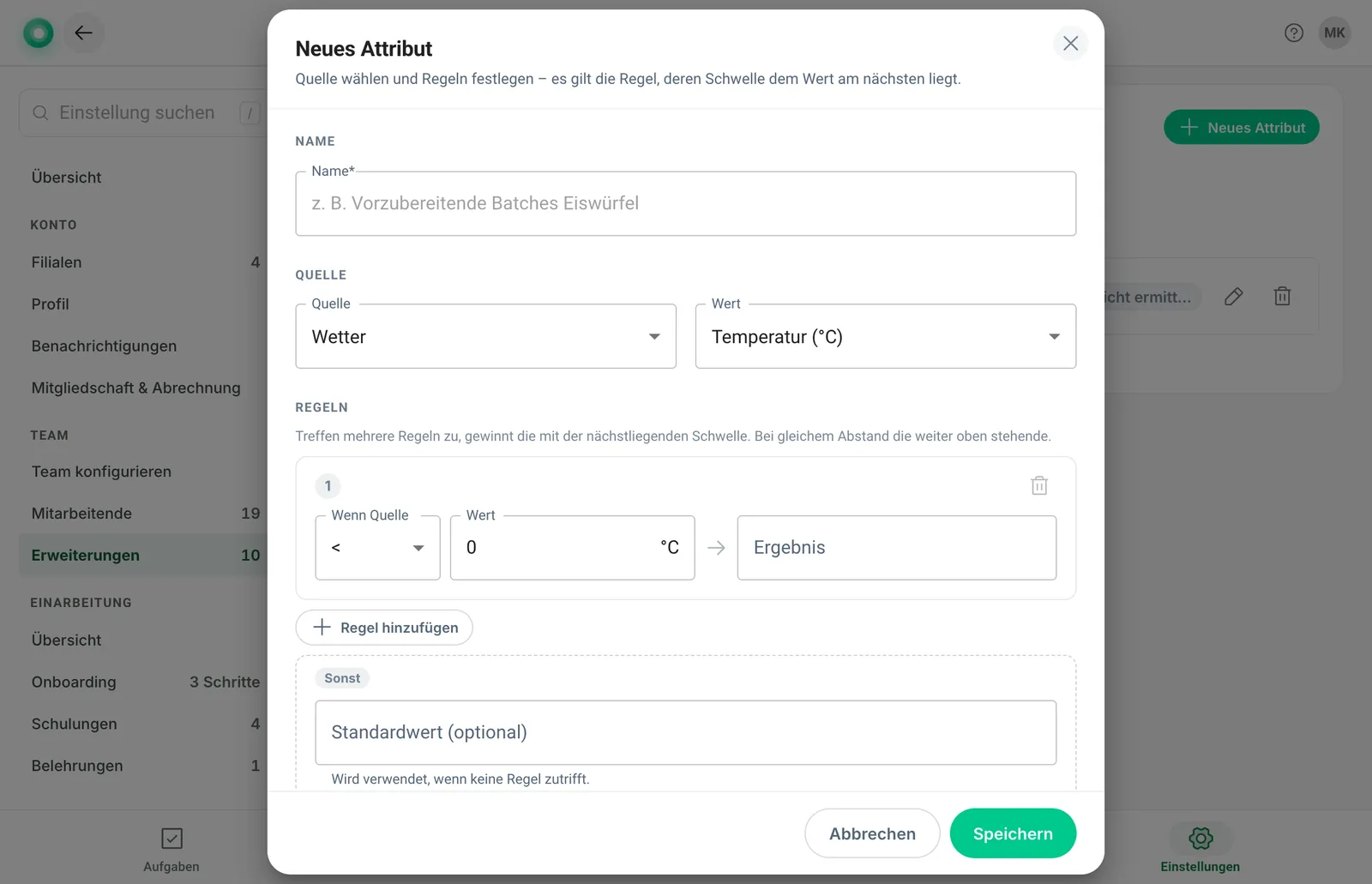
1. Name — this is what the placeholder will be called later, e.g. "Ice cube batches to prepare". The name can be up to 60 characters long.
2. Source — the value the calculation is based on:
- Date — day of month (1–31), month (1–12), weekday (1 = Monday … 7 = Sunday), calendar week, even/odd week (0 = even, 1 = odd), days until month end, quarter (1–4) or season (1 = spring … 4 = winter)
- Time — hour (0–23) or minute (0–59)
- Weather — for your store's location: temperature now, today's high, tomorrow's high, rain probability today and tomorrow, wind (km/h)
- Holiday & opening — public holiday today, public holiday tomorrow, open today (1 = yes, 0 = no)
Even/odd week is how you say "every other week": one rule on = 0, one on = 1. And today's high lets the early shift plan at seven in the morning for the 31 degrees of the afternoon rather than the 16 outside right now.
The holiday sources need the store's postcode — that is what gives the federal state and with it the holiday calendar. "Open today" reads the store's opening days, falling back to the team's. With either missing there is no value, the default applies, and the editor says so underneath the preview.
3. Rules — a list of if-then lines: if the source is <, <=, =, >= or > a value, the result is a text of your choice. Optionally, set a default value that applies when no rule matches.
When several rules match, the one with the closest threshold wins — not the topmost. With rules > 10, > 20 and > 30 and a value of 35, the result comes from > 30. Without that rule the loosest bound would shadow every tighter one, and an attribute with three steps would only ever have one. On an equal distance — say >= 30 and <= 30 at exactly 30 — the one higher up wins. Rules can't be reordered; a new rule always goes to the end of the list.
The example from the app:
Name: Ice cube batches to prepare Source: Weather → Temperature (°C) If source
<20 → 1 If source>=20 → 2
While editing, the live preview helps: it shows the current source value, which rule currently matches and what comes out. In test mode you override the source value experimentally — that way you can check all rules without waiting for the right weather. For weather, holiday and opening sources, you pick the store in the preview if there is more than one.
Use attributes in tasks
Open a task in the editor. With the extension on, you'll find the Insert attribute button next to the title and on the right of the description toolbar. Tapping it opens a list of your attributes, each with the value it would have right now ("Right now: 2"). Pick one and it lands at the cursor position. If the attribute you need doesn't exist yet, create it straight from the task with Create attribute — once saved, it's already in the text.
In the description the attribute appears as a green chip with its name. You can't edit inside the chip, only remove it as a whole: click behind it and press Backspace, or tap it and delete it. If you type the placeholder by hand, it turns into a chip as soon as you add the closing braces.
In the title the attribute stays a placeholder in the text, e.g. {{attribut:Ice cube batches to prepare}}.
When displaying, the app replaces the placeholder with the currently calculated value — in the task list, in the task detail view and in the editor preview. The value is always calculated at the moment of display: if a team member opens the list in the morning at 18 °C, it says "1"; in the afternoon at 24 °C it says "2".
Values are resolved outside the app, too: the daily report email, the calendar day view and the HACCP alert email show the values of the respective report day. In a few places — such as search — the raw placeholder still appears instead.
Values in reports about past days
Reports work with the day they are about, not with today. Yesterday's daily report shows yesterday's weather, and between midnight and three in the morning the current business day still counts, because the task list works that way too.
For completed tasks something stronger holds: on ticking off, the app keeps the title as it read at that moment. What ends up in the HACCP documentation does not change later, even if the weather or the rule does.
When no value can be determined
- If no rule matches and there's no default value, the task shows "Value currently unavailable". A default value reliably prevents that.
- If you delete an attribute that's still used in tasks, the app warns you with the number of affected tasks — they would then show "[Attribute not found]". Better to adjust the tasks first.
- Renaming is safe: the app writes the new name into every task that uses the placeholder.
Who can do what?
Everyone on the team can see the calculated values. Managing them (create, edit, delete) is for team leads and above. This can't be changed within the team itself — which role may do what is described under roles & permissions.
For organisations
If your business is part of an organisation, the organisation's head office manages the attributes — they then apply to all locations, which can use them as placeholders in their tasks. Individual businesses can't create or change attributes themselves. Weather sources still calculate per store, using its location.