
My account
Notifications
gastrotodo reaches you in two ways:
- Emails to team leads when something happens or is due. That means everyone with the Team Lead role or a role above it. People with the Employee or Shift Lead role don't get automatic mails.
- Push notifications in the gastrotodo app on phone and tablet — for the whole team, and everyone decides for themselves what they get (see below).
Which emails does gastrotodo send?
Daily report
There's a daily report for each shift (e.g. "Early shift", "Late shift", "Day-end till"). You set the time under Settings › Team › Configure team: in the Shift section, tap the shift's pencil (Edit) and use the field Notify team management at end of shift. At that time gastrotodo emails the report for that shift to the team leads. There is no single time for the whole team.
The mail contains:
- How many tasks were due
- How many were completed, cancelled, or missed
- Which tasks are still open (with notes, if any were recorded)
- Recorded measurements and anomalies
- Open shopping-list entries — the list rides along with each daily report so you don't need to keep an eye on it separately.
That way you have the full picture at the end of the shift without opening the app. If a shift only ends after midnight, pick a time marked (next day) — the report then arrives during the night or the next morning.
HACCP deviation
When someone records a measurement outside the allowed range (e.g. a fridge that's too warm), gastrotodo immediately emails the team leads with the subject [HACCP deviation]. The mail contains:
- Which task / which location
- Recorded value, target range, and deviation
- Corrective action (if one was filled in)
- The last 30 days as a chart: one bar per day (done, deviation, not done) and below it the line of readings with the target. Above the chart it says how this one fits in — "First deviation in 30 days" or e.g. "Deviation no. 3 in 30 days" —, what range the readings before were in and how many of the planned occurrences were done. That way you see at once whether it's a one-off or something is drifting. The chart only appears once the task has enough earlier readings.
- A direct link into the HACCP dashboard (day of the deviation, location and the "Warnings" filter pre-applied)
This mail is not silenceable — it goes out even when a team lead has switched off email notifications. There's also a push notification for it (see below).
In the Assign role dialog, some roles list "HACCP alerts" — with the built-in roles, from Shift Lead upwards. This setting decides who gets the push about a deviation. The mail always goes to the Team Lead and every role above.
Weekly shopping-list reminder
On top of the daily report, team leads get a separate reminder every Monday at 9 a.m. if items are still sitting on the shopping list — subject 🛒 There are still items on the shopping list for …, with a direct link into the app. That way the week doesn't start with empty shelves, in case the Sunday evening report was missed.
Who gets what?
| Schedule | Silenceable | |
|---|---|---|
| Daily report | Per shift, at the configured time | Yes |
| HACCP deviation | Immediately when a deviation is recorded | No |
| Shopping list (weekly) | Mondays 9 a.m., when items are still open | Yes |
Turning emails off
How to find the switch:
- Tap Settings in the bottom navigation.
- Under Account, open Notifications.
- In the Email section, switch off Email notifications. It applies right away, no need to save.
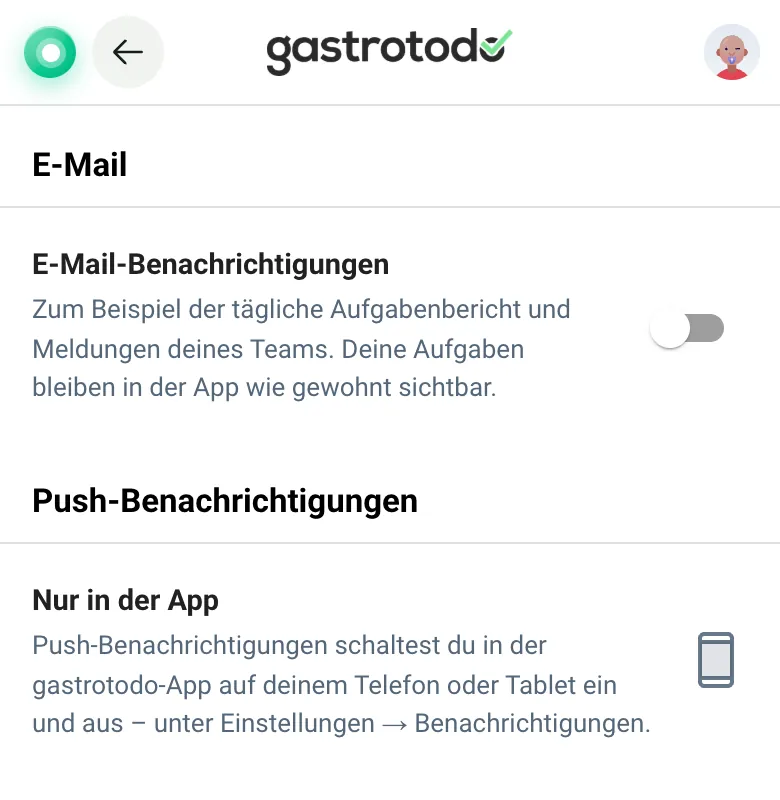
Switched off means you stop getting the daily report and the weekly shopping-list reminder. Other team leads are not affected — the setting is personal, not team-wide.
Exception — HACCP warnings deliberately ignore the switch. They're considered safety-relevant and must not silently disappear.
Push notifications in the app
In the gastrotodo app on phone and tablet, important things arrive as push notifications — for team members too, not just team leads. There are no push notifications in the browser.
Prerequisite: the extension
Your team only sends push notifications if the Push notifications extension is on under Settings › Team › Extensions. New teams have it from the start; existing teams switch it on there themselves (team leads can do this). If it's off, nothing is sent — whatever individual people have set.
Turning it on for your device
On first launch the app asks whether it may send notifications. If you tap Later, it asks again in a few days.
You can also switch it yourself at any time: Settings › Account › Notifications, in the app in the section Notifications on this device, switch Push notifications. The switch only applies to this device; your other devices stay reachable. If you declined notifications in the system settings, you'll see the Open phone settings button instead — that's the only place to allow them again.
If you open the page in a browser, the section is called Push notifications, and instead of the switch it says App only.
When you sign out of gastrotodo, the device is signed out too. Whoever signs in on the same phone next won't get your notifications.
Which notifications there are
| Notification | When | Who gets it |
|---|---|---|
| Posts under News | Someone posts under News | Everyone on the team except the person posting |
| Reactions to your posts | Someone reacts to your post under News with an emoji — e.g. "Ben reacted with 👍". If the same person adds a second emoji, no further push is sent | Whoever wrote the post |
| Your shopping items checked off | Someone checks off something you added to the shopping list — e.g. "Checked off: Whole milk" | Whoever added the entry, unless they check it off themselves |
| Your defects solved | Someone taps Problem solved on a defect you reported | Whoever reported the defect, unless they solve it themselves |
| Reminder before the shift ends | One hour before the shift ends, if tasks are still open — e.g. "Early shift Bar: 3 tasks still open." | Whoever has already ticked something off in that shift and department today |
| Daily report | At the same time as the daily report email | Team leads and above |
| New team members | Someone joins the team | Shift leads and above |
| Shopping list | Someone adds something to the shopping list | Only people who switch it on |
| HACCP deviations | Someone records a reading outside the limits | Whoever's role gets HACCP alerts (with the default roles, shift leads and above), except the person who measured |
| Open briefings | Someone who manages onboarding & training taps Remind | Whoever still owes the briefing, work instruction or mandatory training |
Tapping the notification opens the right place in the app — for the daily report, that exact day.
HACCP deviations: the push names the task, the reading with its target, the location and who measured, e.g. "HACCP deviation: Fridge counter check" with "11 °C measured, target ≤ 8 °C. Main store, recorded by Hanna. No corrective action recorded." below it. The last sentence is left out once a corrective action has been entered. Tapping it opens that day's warnings in the HACCP dashboard — the dashboard is visible to everyone who may read HACCP and is at least Shift Lead. This push only exists in teams with HACCP. The deviation email to team leads arrives regardless — even if you unsubscribe from the push.
Open briefings: under Settings › Onboarding & training, the Overview and Proofs pages have a Remind button. It sends a push to everyone who still owes a briefing, a work instruction or a mandatory training — e.g. "Briefing still open". For the same item, a reminder goes out at most every six hours, even if several people tap it. Tapping the push opens the training for a training, otherwise the task list, where the briefing is waiting to be confirmed.
Locations: if you're assigned to a location, the daily report push only shows that location's numbers, and shopping-list, new-member and HACCP-deviation pushes only cover your own location. If you're not assigned to a location, you get everything.
Daily report with a picture: the daily report push comes with a small summary card — location, date, "12 of 14 done" with a progress bar. Long-press the notification to see it large. Older app versions show the push without the picture.
Unsubscribing from individual notifications
Under Settings › Account › Notifications, section Notifications on this device, below the device switch, each kind has its own switch. All are on except the Shopping list — switch that one on only if you want it. You only see the kinds that can actually reach you; people with the Employee role, for example, see no switch for the daily report, and only people whose role gets HACCP alerts see the HACCP deviations switch.
Your choice applies to you, not per device: set it once for phone and tablet.
The Email notifications switch (see above) only affects the emails, not push notifications.
Mails not arriving
- Check the spam folder — the first message from a new sender sometimes ends up there.
- Make sure your address in profile is current and that the Email notifications switch under Settings › Account › Notifications is on.
- If you tapped "Unsubscribe" in an older mail, your address is on a block list on our side. Write to
support@gastrotodo.deso we can release it again.