
HACCP
Setting up HACCP tasks
HACCP tasks are just regular tasks — with one extra: whatever is recorded when they're completed ends up in the store's HACCP documentation. Depending on the check, that's a reading (temperature or TPM) or proof that the check took place.
Only the team lead can set up HACCP tasks.
How a task becomes a HACCP task
- Create a new task (or edit an existing one).
- Go to the step How? (step 3 of the wizard).
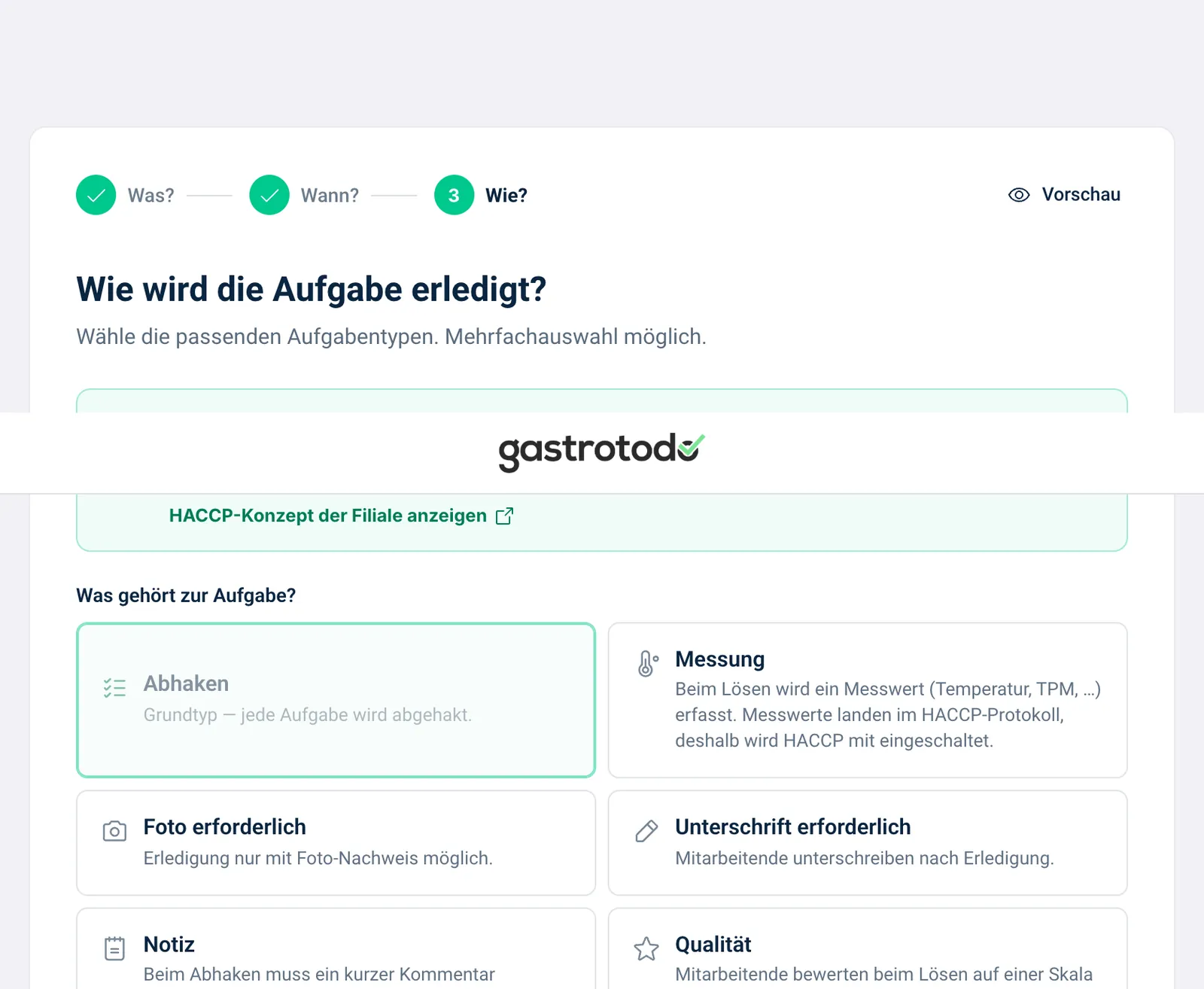
- At the top, turn on the switch This task should appear in the store's HACCP plan.
- The HACCP variant section appears below it, with the fields variant, limits and measurement object.
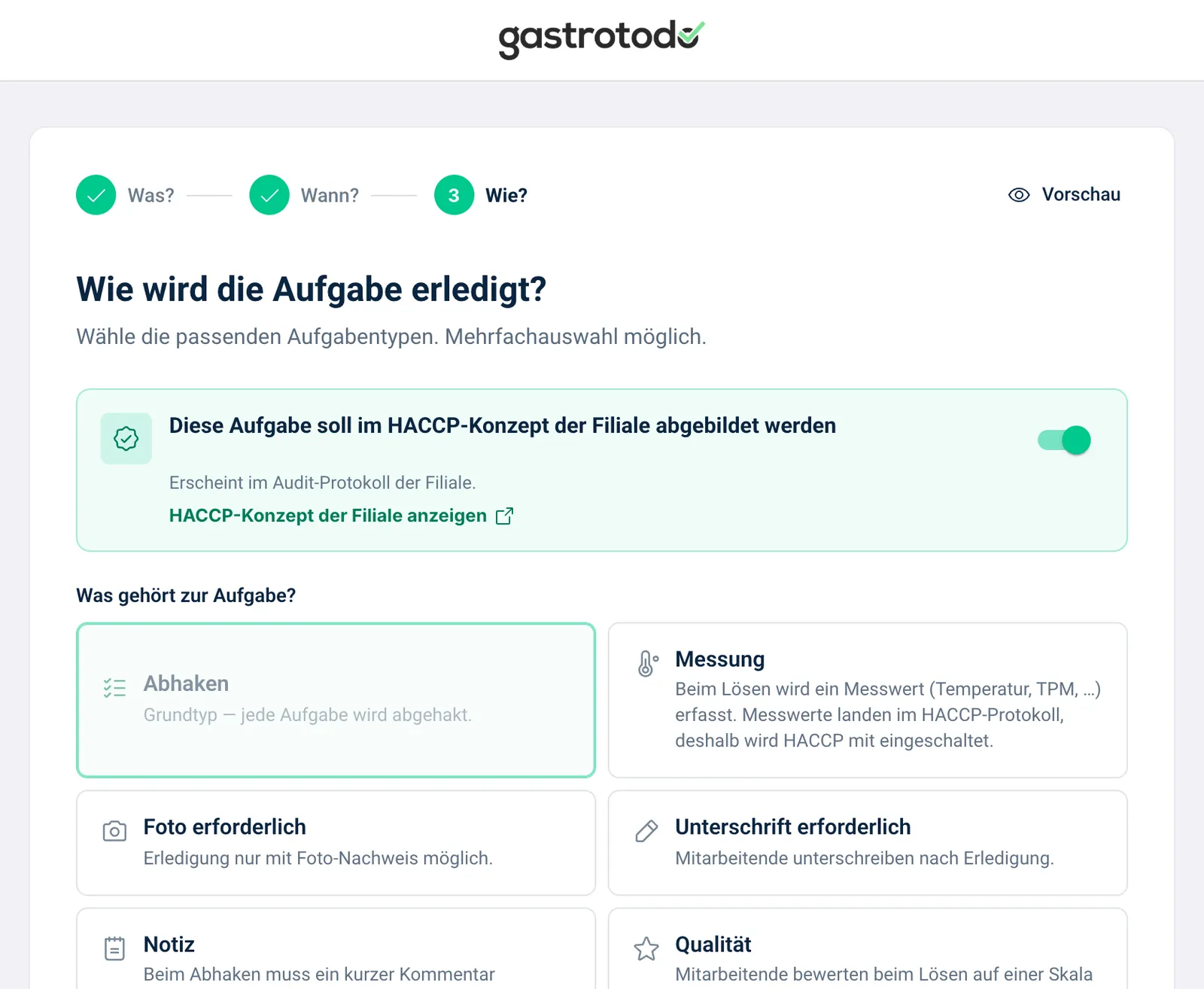
The HACCP-compliant documentation badge at the bottom of the section confirms it: the task will end up in the store's audit log.
The HACCP fields
Variant
Pick what kind of check it is. The list is split into two groups.
With measurement:
- Incoming-goods inspection — check temperature on delivery
- Storage / cooling temperatures — fridge, freezer, storage
- Heating temperature — core temperature when cooking and searing
- Serving temperature — temperature when serving to the guest
- Frying-oil quality check — TPM measurement
Documentation only:
- Cleaning and disinfection — cleaning logs
- Pest control — inspections and measures
- Staff training — training and briefings
The variant determines which columns appear in the HACCP log — and what gets entered on completion. You don't pick a unit separately; it follows from the variant:
- Temperature variants measure in °C. If you pick one of them, the form switches on the Measurement tile in the task types by itself.
- Frying oil measures in TPM (Total Polar Materials). Here too the Measurement tile switches on by itself.
- Incoming-goods inspection is the special case: here you decide yourself with the Measurement tile. With measurement, a temperature has to be entered on completion; without it, it's pure documentation, e.g. "Check best-before dates on delivery".
- Documentation-only variants have no reading. If you pick one of them, the Measurement tile switches off — on completion the task is just ticked off or, if you require a signature, signed.
Limits
For temperature readings you define which range is OK. Two options:
From rule set — pick a predefined rule from the list, e.g. "Lagerung von Frischfleisch, Fleischerzeugnisse, Käse, Feinkost ≤ 7 °C" (storage of fresh meat, meat products, cheese and deli) or "Lagerung von Milchprodukten ≤ 10 °C" (storage of dairy products). The actual limits are shown next to each rule name.
Custom limits — enter your own minimum and maximum, e.g. "min. 2 °C, max. 5 °C" for a specific cooling unit.
For frying oil (TPM) and for variants without a measurement this field doesn't exist.
If someone enters a value outside the range, the app asks for a corrective action. On top of that the team lead and every role above get an email warning with the measured value, the deviation and the corrective action that was entered — if there are enough earlier readings, also with the last 30 days. Whoever gets HACCP alerts according to their role (with the default roles, shift leads and above) also gets a push notification in the gastrotodo app. Who gets what: Notifications.
In the HACCP documentation the limit is printed above the task's measurement table (e.g. "Limit ≤ 7 °C"), and only values outside it are marked red.
Measurement object
What's being checked? E.g. "Cold room 2", "Left fryer", "Serving tray". This field appears in the documentation as the location. If you leave it empty, the "Location" column is left out of the log for cooling temperatures, cleaning, pest control and frying oil, as long as no row carries a note.
Bluetooth thermometer
If your team uses the Smart devices extension (beta, under Settings › Team › Extensions, off by default), temperature readings get a Bluetooth thermometer field below the limits. With Link a thermometer the gastrotodo app searches for thermometers nearby and shows their current readings; you pick the right one. The search needs Bluetooth and an up-to-date version of the gastrotodo app on a phone or tablet — on a computer you see a thermometer that's already linked, but can't search for a new one; without one, the field there says that linking works in the app.
On completion, the app then offers the thermometer's current reading to take over. Only what someone confirms gets entered. Remove link detaches the thermometer from the task again. If you switch the extension off, the field disappears; the link stays saved and is back as soon as the extension is on again.
Signature required
If team members should sign digitally after the measurement, pick the Signature required tile among the task types in step 3. Handy for particularly sensitive checks — the signature is done with a finger on the screen.
May be skipped
Some checks aren't needed every day — no delivery, no incoming goods check. For this, step 3 has the May be skipped switch below the tiles. It works for HACCP tasks too.
When it's on, staff can report the task as Task not needed via the X icon — with a reason, e.g. "No delivery today". The occurrence then counts neither as done nor as cancelled:
- In the HACCP documentation it appears as "Not needed" with the reason and name — the inspector sees why there's no reading.
- In the HACCP dashboard it doesn't count as a missing entry.
How to report it: Completing HACCP tasks.
Example: fridge check
Step 1 — What?
- Title: Cooling temperature fridge 1
- Description: "Read the thermometer in fridge 1 and enter the value."
- Shift: Morning shift
- Department: Kitchen
Step 2 — When?
- Recurrence type: Every day
Step 3 — How?
- Switch This task should appear in the store's HACCP plan on
- Variant: Storage / cooling temperatures — the Measurement tile switches on by itself
- Limits: From rule set → "Lagerung von Frischfleisch, Fleischerzeugnisse, Käse, Feinkost ≤ 7 °C"
- Measurement object: Fridge 1, kitchen
In the morning, someone on the team taps the measurement icon next to the task, enters "5.3" and confirms — the documentation is done. With "9.1" the app already shows "2.1 °C too warm" while typing and then asks for the corrective action; the warning goes to the team lead.