
Tasks
Cancel a task
Sometimes a task just can't be done — the equipment is broken, a product is missing, or there's some other reason. That's what the cancel option is for. And sometimes a task simply isn't needed today, like the goods-in check when nothing was delivered — that's what Task not needed is for, on some tasks.
How to cancel a task
- Tap the X icon next to the check-off box, to the left of the task title.
- A sheet opens with the task's name and Not done today below it.
- Only for tasks where the team lead has switched on May be skipped: at the top, choose what happened — Task is cancelled (couldn't be done) or Task not needed (nothing to do today). All other tasks don't show this choice; the dialog is always a cancellation there.
- Enter a reason — e.g. "Cleaning product empty" or "Equipment broken". You can't continue without one. For "Task not needed" the field is called Why is it not needed today?, e.g. "No delivery".
- Optional, only when cancelling: pick a product if the cancellation is linked to a specific device or item. The field only appears if products are linked to the task.
- Tap Report as not done — or, for "Task not needed", Report as not needed.
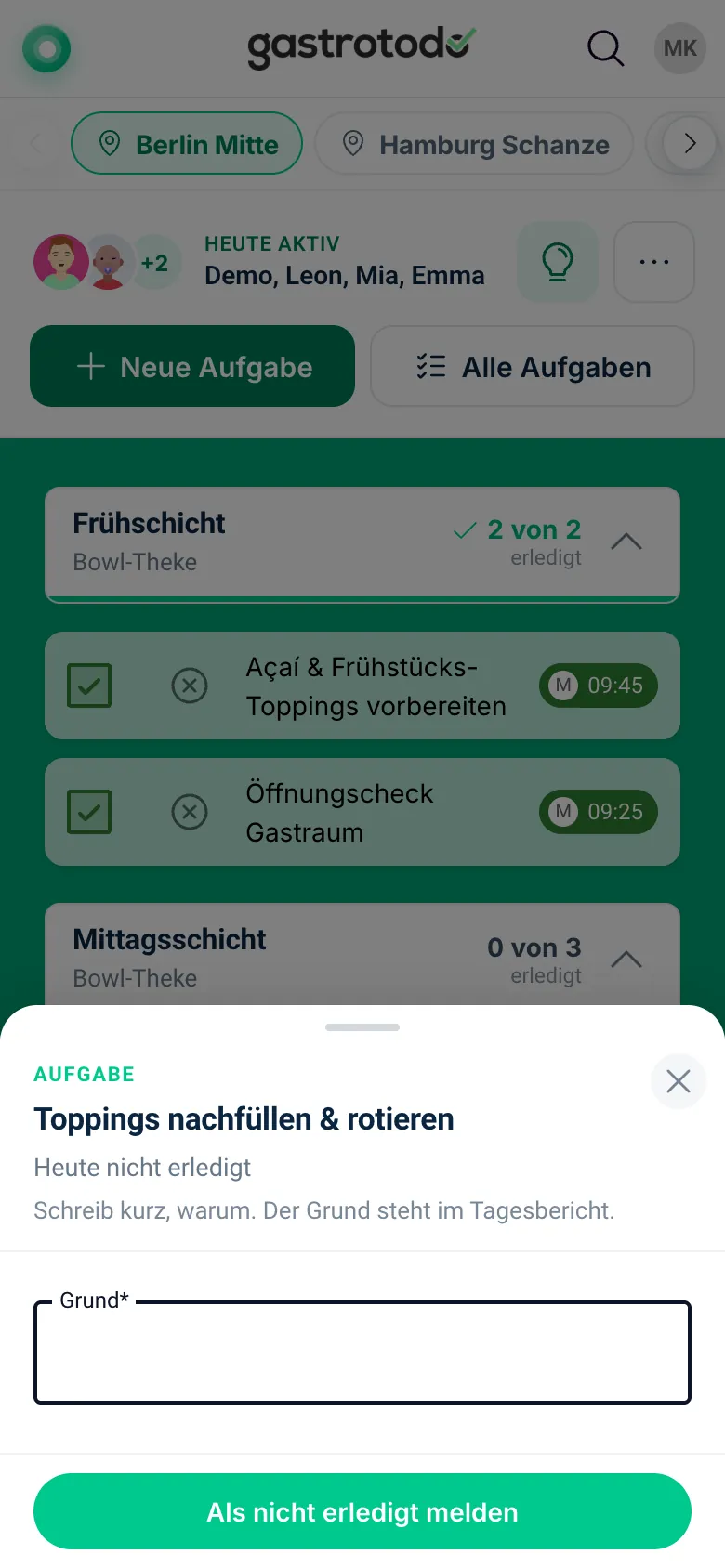
Afterwards the reason shows in small print under the title in the task list. A cancelled task has a red X, a task that's not needed a grey icon.
Suggestions from earlier cancellations
If a task has been cancelled before with a specific reason, the app offers that reason again as a button — e.g. "Product missing" or "Equipment broken". One tap fills in the reason, so you don't have to type it again.
What happens to linked products?
If you pick a product when cancelling, you have two options:
- Add to shopping list — e.g. when a cleaning product is empty. The product then shows up automatically on the shopping list (tab "News").
- Report defect — e.g. when a device is broken. The defect is logged and your team sees it under "News".
"Task not needed" doesn't offer these options — nothing is broken or empty, after all.
When a task isn't needed today
"Not needed" means: the task wasn't necessary today, and that's fine. Whether a task may be skipped is set by the team lead per task — HACCP tasks included. Details: Create a task.
A task reported as not needed:
- counts neither as done nor as cancelled — it drops out of the progress in the task list, the completion rate in the calendar and the rate in the daily report,
- does not become overdue the next day,
- shows in the daily report marked Not needed, with your reason,
- shows in the HACCP documentation as Not needed with its reason, instead of as a gap.
No response, cancelled or not needed — the difference
- No response (no check, no X): The task shows up the next day as "overdue". In the reports it appears under "No reply" — which doesn't look good.
- Cancelled (via Report as not done, with a reason): The task is closed and documented and doesn't become overdue. The reason shows up in the reports. Your team lead knows why it didn't happen, and the task doesn't count as "forgotten". In the completion rate, though, it counts like a task that wasn't done — because it wasn't.
- Not needed (via Report as not needed, only on tasks with "May be skipped"): The task wasn't necessary today and isn't counted at all — the rate stays untouched.
Bottom line: better to cancel actively than to just ignore. And if a task really wasn't needed today and may be skipped: report it as not needed instead of cancelling.