
Tasks
Sort tasks
Only team leads can change the order of tasks.
The order of tasks in the day view decides which sequence your team works through them in. You can set the order yourself or let gastrotodo suggest a smart one.
Where to find sorting
The quickest way is via the Tasks page: in the bar at the top, tap the three-dot menu next to New task and then Sort tasks.
Or via the settings:
- At the bottom right, tap the Settings tab.
- Under Tasks & HACCP, choose Order.
Sort tasks by drag & drop
On the sort page you see all active tasks in their current order. Each entry shows:
- Position — the running number in the filtered list.
- Title of the task.
- Department as a chip (e.g. "Kitchen").
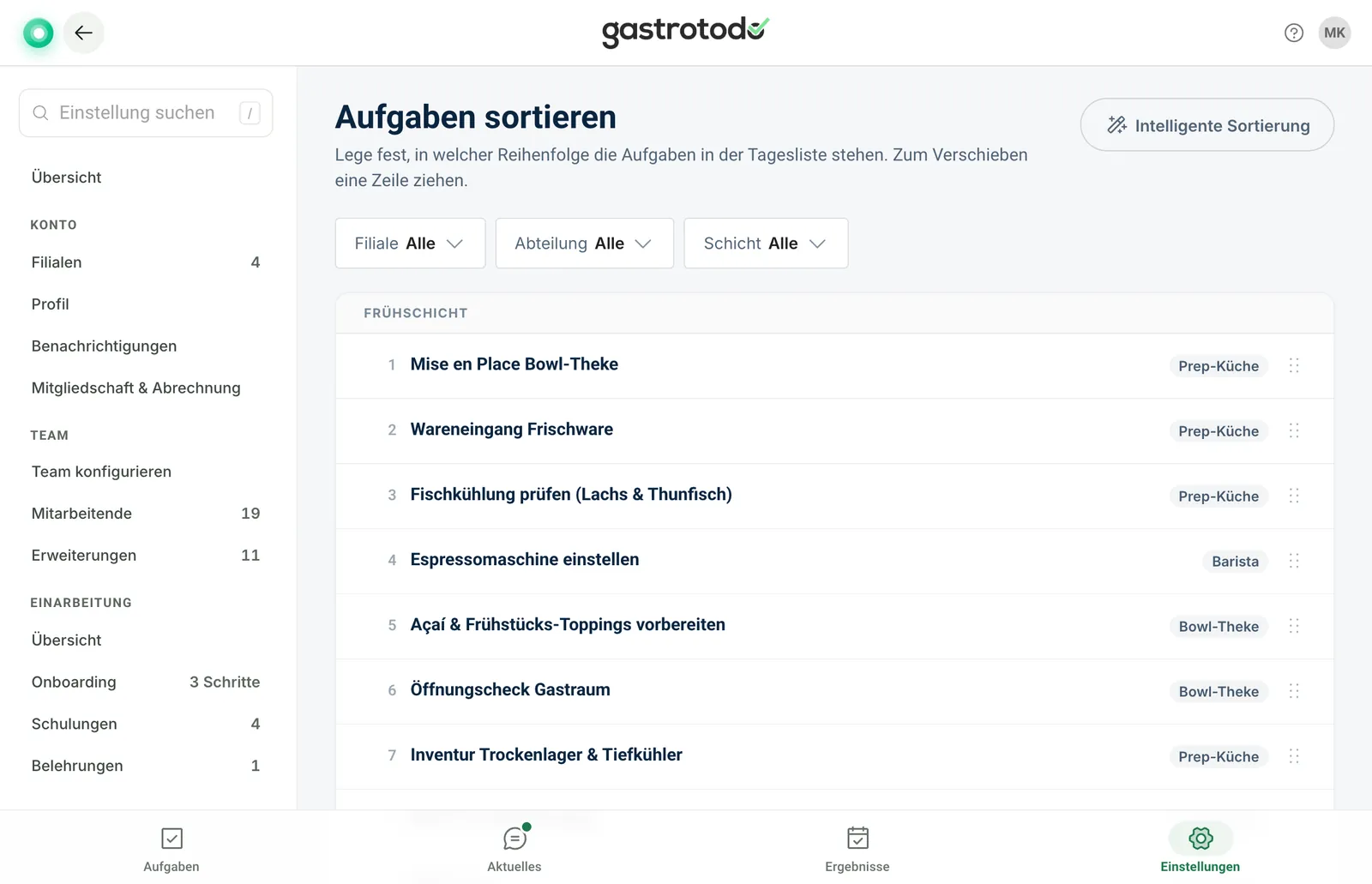
Grab a task anywhere on the row and drag it to the spot you want. While you drag, the other tasks move aside — that shows you where it will land.
If no shift filter is set, shifts appear as small headings between blocks — that way you keep your bearings even in long lists.
Filters
Three filters help you find the right task quickly:
- Store — only shows tasks that apply to the selected store.
- Department — narrows down to one department.
- Shift — only shows tasks from one shift.
A filter only appears when there is more than one store, department or shift.
Filters only affect the display — the full order is kept intact in the background. So you can sort with filters on without messing up tasks you can't see.
Saving
As soon as you've moved something, the hint You have unsaved changes appears at the bottom of the screen with a Save button. The new order is only applied after you click it.
If you go back via the arrow in the top left before that, gastrotodo asks whether you want to discard your changes; in the browser also when you close or reload the tab. If you switch to another page through the navigation instead, unsaved changes are lost without asking.
Smart sort
With Smart sort (at the top of the sort page) gastrotodo suggests an order based on your team's actual completion times: tasks that are done early in the day on average land at the top, evening tasks further down.
Prerequisite: at least 7 days of real usage with completions. Before that there's not enough data for a meaningful suggestion — the dialog shows you the current status.
Show the data behind it
In the dialog you can expand the Data basis block. There you'll see:
- the period that was analysed (from … to …),
- per task the number of completions and the average time of day (e.g. "24× · ⌀ 08:34"),
- at the end, a list of tasks without data — these automatically land at the bottom of their shift, because there's no history.
That way you can understand why a task was placed where it was.
Apply the suggestion
When you tap Apply suggestion, the suggested order is loaded into the list — but not saved yet. You can keep adjusting it and only then lock it in with Save. So you stay in control.