
Team
Welcoming new team members
Anyone who joins your team goes straight into onboarding after signing up: first a welcome message from you, then the content every new person needs to know — for example the hygiene briefing, a work instruction or a short training. Only once everything is done does the rest of the app unlock.
Only the team lead can set up the onboarding. Locations of an organisation don't have this page — their staff are managed centrally.
Setting up the onboarding
- Go to Settings › Onboarding & training › Onboarding.
- On the left you'll see the Flow: step 1 is always the Welcome message, your content follows, and App unlocked comes at the end.
- Tap a step to edit it.
- Tap Save. On a phone the button sits at the bottom of the screen.
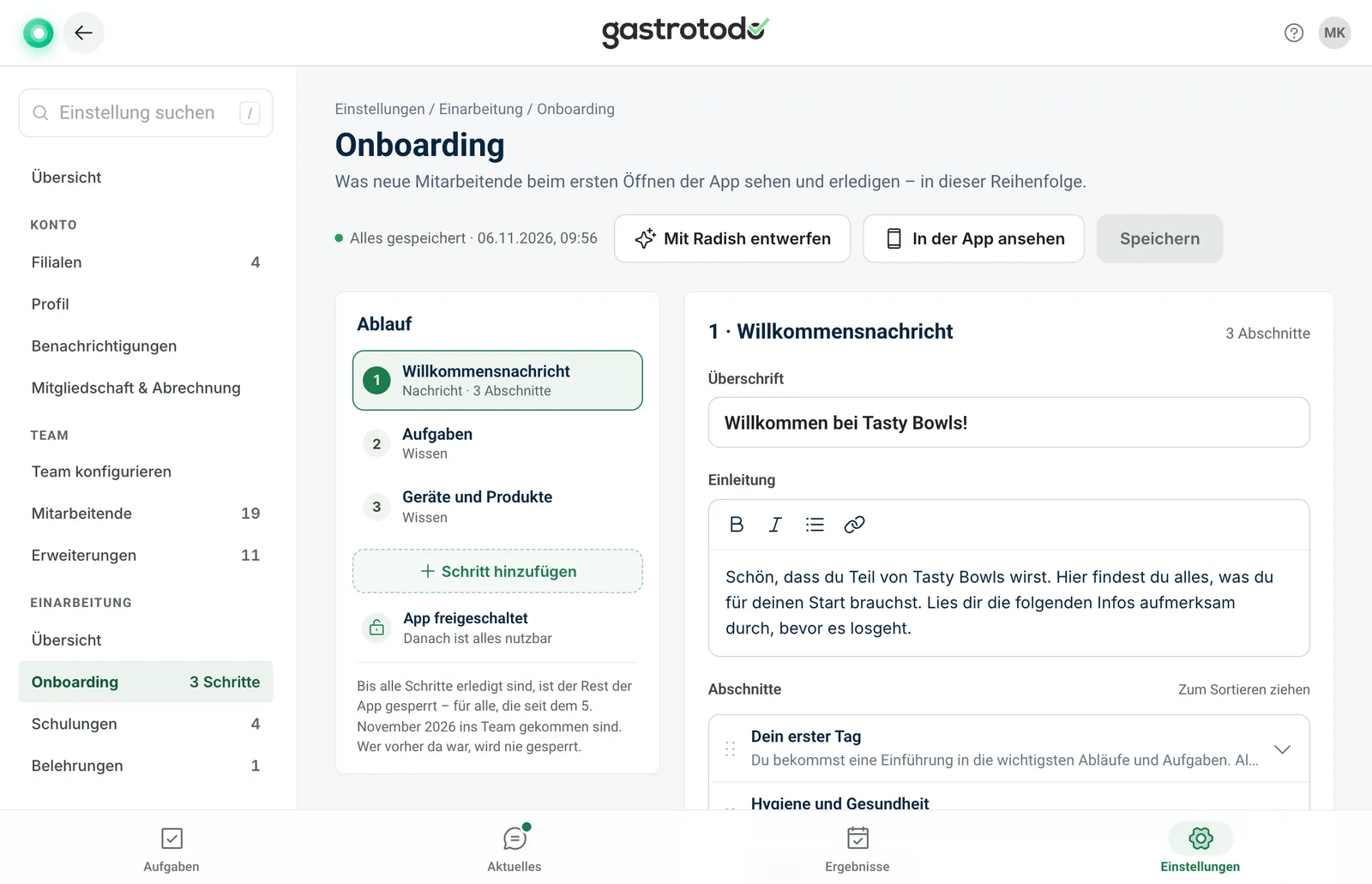
At the top you can see whether everything is saved ("All saved · …") or whether there are still Unsaved changes.
The welcome message
The message has four parts:
- Heading — e.g. "Great to have you here!"
- Introduction — a few words of welcome
- Sections (optional) — topics with their own title that new team members fold open in the app, e.g. uniforms or contacts. Add section adds one; drag to change the order.
- Closing — e.g. "We look forward to working with you!"
The heading and the text must be filled in. As long as you don't change anything, new team members see a default message in their language.
You don't need to work the new person's name in: the start screen greets them by name ("Welcome to the team, Lea").
Adding steps
- Tap Add a step in the flow.
- In the Add to onboarding window you choose from knowledge (documents from the knowledge base), briefings, work instructions and trainings. At the top you can search and filter by type.
- Tap Add … steps. The content is added at the end, in the order you tapped it.
Move earlier and Move later reorder a step; Remove from onboarding takes it out again. Trainings can only be picked once they are published.
When a step counts as done:
- Knowledge — once the person has read the document to the end and tapped Done reading — continue.
- Briefing and work instruction — once it is confirmed, with a signature if it asks for one.
- Training — once it is finished. If it has a quiz with a pass mark, only once enough answers were right.
If a piece of content doesn't apply to a person at all — say a briefing for another department or store, or a document in another language — it is left out of their onboarding instead of staying open.
A training in the onboarding applies to the whole team. Adding it here is the same as the In onboarding switch in the training editor. New team members complete it in their onboarding; everyone else sees it above their task list until they have finished it.
Drafting with the AI assistant
If the AI assistant is switched on for your team (the AI assistant card under Settings › Team › Extensions), a Draft with Radish button appears at the top (with whatever name your assistant has in your team). The assistant goes through your tasks, knowledge documents, briefings and trainings, writes a welcome message from them and picks suitable steps. This takes up to a minute.
The draft is not saved yet. Why these steps? explains why the assistant picked what it did. Check everything, change what doesn't fit, then save — until then your onboarding stays as it is. Discard brings back what is saved. If you already had unsaved changes, the app asks before the draft replaces them.
Trying it out first: the test run
On wide screens a phone with the preview sits to the right of the editor, and View in app opens it at any time. This is a test run: you click through as a new team member would, with the real trainings, documents and briefings. It shows what is currently in the editor, even before you save.
Nothing is saved — no completion, no confirmation, no "read". No signature is asked for in the test run. Restart test run goes back to the welcome message.
What do new team members see?
Anyone who creates an account via your invitation link or QR code goes straight into the onboarding in the app afterwards.
- The welcome message is the first screen. If more steps follow, Next leads to the start screen. Without steps, Let's go leads straight into the app.
- The start screen greets the person by name ("Welcome to the team, Lea") and shows what's left — e.g. "3 steps left · approx. 9 min to go" — with a progress bar that has one segment per step. The minutes are a rough estimate from the text and slides.
- Below that, the next step appears as a card: "Step 2 of 4", the type (e.g. briefing), the title, the approximate time and, for briefings, "With confirmation" or "With signature". Start now opens it.
- Your way lists all steps in order, with the welcome message as step 1 and App unlocked at the end. Finished steps are ticked off and can be opened again.
Knowledge documents and briefings open full screen. The person can only confirm once they have read to the end — until then it says "Please read to the end". A training runs like any other training; after finishing, Back to onboarding returns to the start screen.
Once everything is done, the screen says "The app is unlocked", and Go to the app leads to the task list.
The app stays locked until everything is done
While steps are still open, the person can only reach the onboarding and the content it opens. The navigation shows Start first instead of the tasks; the other areas are greyed out with a lock. Tapping one says: "Unlocks once you have finished your onboarding."
Only people are locked who
- created their account since the onboarding lock was introduced (November 2026) — anyone who was already on the team before is never locked,
- are not team leads or higher — kiosk logins are exempt as well,
- belong to a team whose onboarding has at least one saved step.
Anyone who has finished everything once, or has been unlocked, is never locked again — not even when you add steps later.
Tracking progress and unlocking
- In the Members list (Settings › Team › Members) everyone currently in onboarding shows something like "Onboarding · 60 % to go".
- On the person's page (three-dot menu in the Members list › View details) the Onboarding tile shows how many steps are done and what comes next.
If someone is stuck or already knows the content, you can let them in by hand: tap Skip onboarding – open the app in the Onboarding tile and confirm. The whole app opens up for that person at once, even with steps still open. This cannot be undone.
Example
Heading: Great to have you here!
Introduction:
Welcome to the team! A few things to get you started.
Sections:
Your first day — Your shift starts at 7:00. Your point of contact for the first few days is Lisa.
Uniform — We'll give you a chef's jacket and an apron. Please bring sturdy, non-slip shoes.
Closing:
We look forward to working with you! Your team lead
Then as steps: the hygiene briefing under § 43 IfSG (briefing with signature) and the training "How to clean the coffee machine".
Tip
Keep the message short and friendly, and the onboarding lean: as long as a step is open, the new person can't get to their tasks. Only include what really has to be known before the first shift — the hygiene briefing, for example. Everything else can come later, through trainings for example.
How to create briefings and trainings and see who has confirmed them is described in Creating and tracking briefings.