
Team
Kiosk mode
Only the team lead can enable kiosk mode.
Kiosk mode is for one device that several team members share. Each person taps their photo to select themselves — no individual login needed — and tasks, completions and notes still get logged to the right name.
Typically this is a tablet on the counter, in the storeroom or at a workstation. It works just as well on a laptop or an old smartphone — with the gastrotodo app or in the browser, as long as the device is switched on.
Enable kiosk mode
Kiosk mode is an extension — you switch it on there:
- Go to Settings › Team › Extensions.
- Turn on the switch on the Kiosk mode card — it is saved straight away.
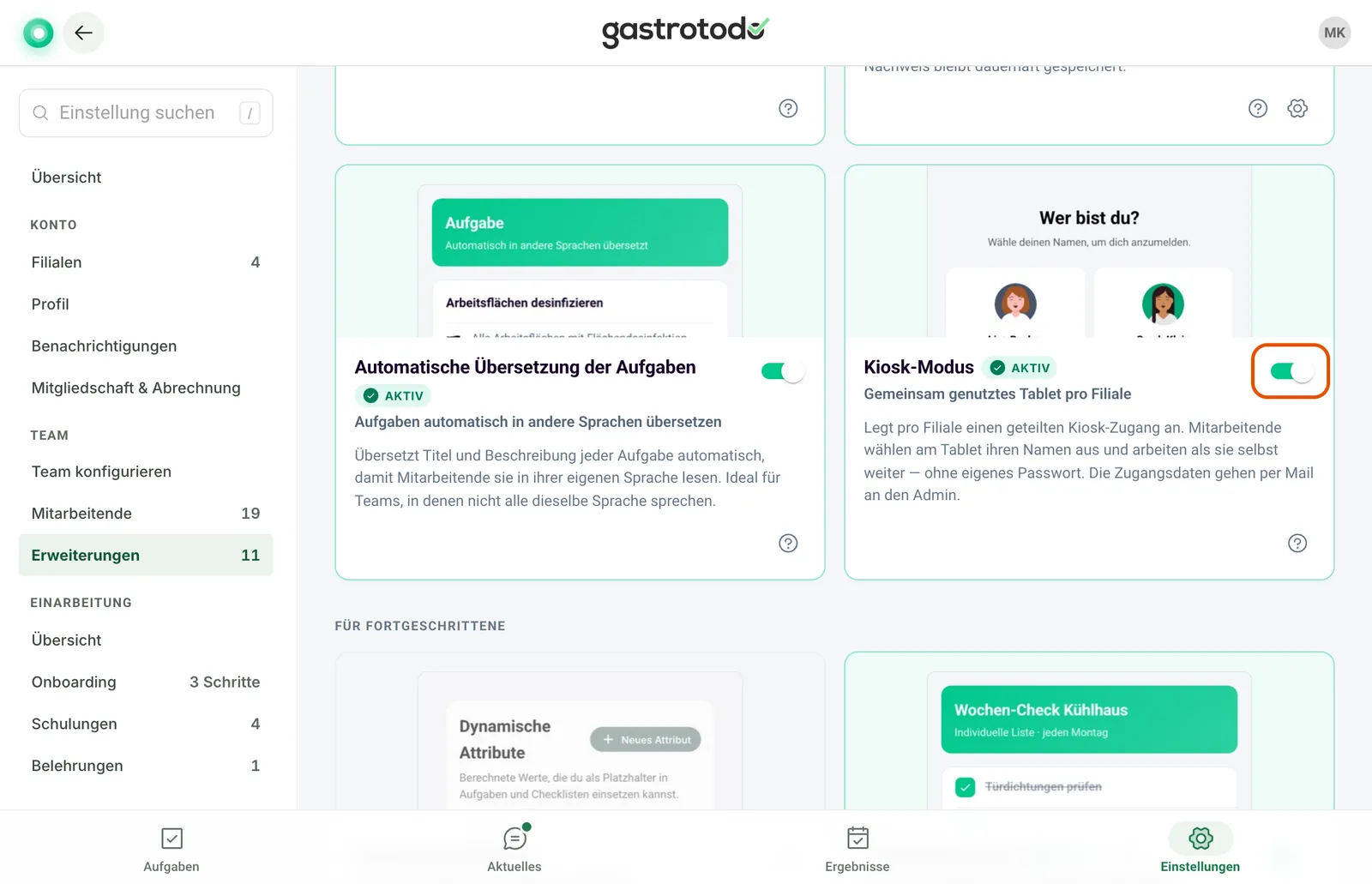
gastrotodo creates one separate kiosk account per location. You receive a separate email with username and password for each location. Sign in once on each device with the matching location's credentials — from then on, that device stays in kiosk mode for that location.
If you have multiple locations, you need multiple devices — each device stays tied to the location it was set up with.
How team members sign in
When you open the app, the selection page Who are you? appears with the photos and names of the team members. One tap on your own picture and you're in, looking at the regular task view.
Who appears there:
- Only people with the Employee role. Shift leads, team leads and higher roles can't be selected.
- If your team has several stores, only those assigned to this device's store. Anyone without a store is then missing on every kiosk device — you set the store in the member list via Edit profile.
Every action — ticking off, leaving a note, taking a photo, cancelling a task — gets logged to the name of the currently selected person.
Because only people with the Employee role are signed in at the kiosk, only their features are available there — creating tasks or the team settings stay with the team lead on their own device.
When an inspection takes place
At the top right of the selection page there's the button Click here when an inspection is taking place (if you use the HACCP extension). It opens inspection mode with the HACCP documentation for every location, the inspection sheet including QR code, a shareable link and the PDF export — without anyone having to sign in with team lead rights. Details: HACCP documentation.
Switching to another person
In kiosk mode, a small button with the profile picture of the currently selected person appears in the top right. Tapping it brings you back to the selection page — and the next person can select themselves.
Switching should become routine: after every shift, when changing workstations, or before each new task. Otherwise actions accidentally end up under the wrong name.
When does kiosk mode make sense?
- When several team members share one device instead of everyone using their own.
- When personal phones aren't welcome at work (e.g. in the kitchen, bakery, storeroom).
- When casual staff without their own email address or phone should complete tasks. Only people who exist in the team can be selected on the kiosk — for them you create an access without a password.
Practical tips
- Extend or disable the display timeout in the device settings — otherwise the device has to be "woken up" before anyone can select themselves.
- A large display makes the selection nicer to use — tablets from 10 inches upwards work best in practice.
- Make sure the device has power: a device that stays plugged in avoids empty-battery problems mid-shift.
- Don't close the app or browser tab: if the app or browser tab gets closed by accident, just open it again — the sign-in stays in place.