
Getting started
Getting started with gastrotodo
You're the team lead? Here's how to start.
- Go to the gastrotodo website and pick the plan that fits your business best under Pricing.
- Click Get started — that takes you to the signup form.
- Enter your business name (e.g. "Pizzeria Roma"), your name, your email and a password.
- Accept the privacy terms and click Create account.
- Add a credit card — you start with a trial period, you're only charged after it ends, and you can cancel any time before then. You can switch to SEPA direct debit later in the customer portal, see Manage your subscription.
If you sign up via the Dutch website (gastrotodo.nl), your team gets Dutch as its team language, and the app starts in Dutch for you. Emails from gastrotodo reach Dutch teams in English, because they only exist in German and English. More on languages: Profile.
The setup assistant
After signing up you land in your still empty task list. A welcome card is waiting there with the button Start initial setup — it opens the chat-based setup assistant, which walks you through a few questions step by step:
- Business name — what's your business called?
- Address — first street and house number, then postcode and city
- Opening days — which days are you open?
- Shifts — e.g. early shift, late shift. At least one is required; separate several with commas.
- Departments — e.g. kitchen, service, bar. Again, at least one.
- Report time — when should the daily report go out by email? The time applies to all shifts you create here; you can change it per shift later.
- HACCP — would you like to use gastrotodo for your HACCP concept? If you say yes, the task suggestions also include HACCP tasks such as temperature checks.
- AI assistant — would you like to enable the AI assistant? It answers your team's questions from your documents and tasks. You can change this later under Extensions.
- Task suggestions — shall we add a few starter tasks for you? If yes, you pick sample tasks and assign each one to a shift and a department.
Everything is saved in one go at the end — only shifts and departments are created earlier, right after the report-time question. The Start over button at the top right starts the conversation again; shifts and departments you already created stay, and the assistant offers to continue with them.
At the end, the app takes over your answers:
- Your first store is then named after your business (instead of "Main location") and gets the address and opening days. If you had already renamed it yourself, your name stays.
- You yourself are assigned to that store from the start.
- Task suggestions you adopt keep their own limits — a chest freezer, for example, "at most −18 °C".
You're a team member? Here's how to join a team.
The team lead sends you an invitation link — via WhatsApp, email or however you usually communicate. Click it, quickly create your account (name, email, password, language), and you're in the team.
After that you go straight into onboarding: the first thing you see is your team's welcome message. If your team has set up onboarding steps, Next takes you to them — until you've finished them, the rest of the app is locked. If there are no steps, Let's go takes you straight into the app. More on that: Welcoming new team members.
As a team member you don't need your own subscription — you're covered by your business's team.
Signing in
If you already have an account, open the app and sign in with your email and password.
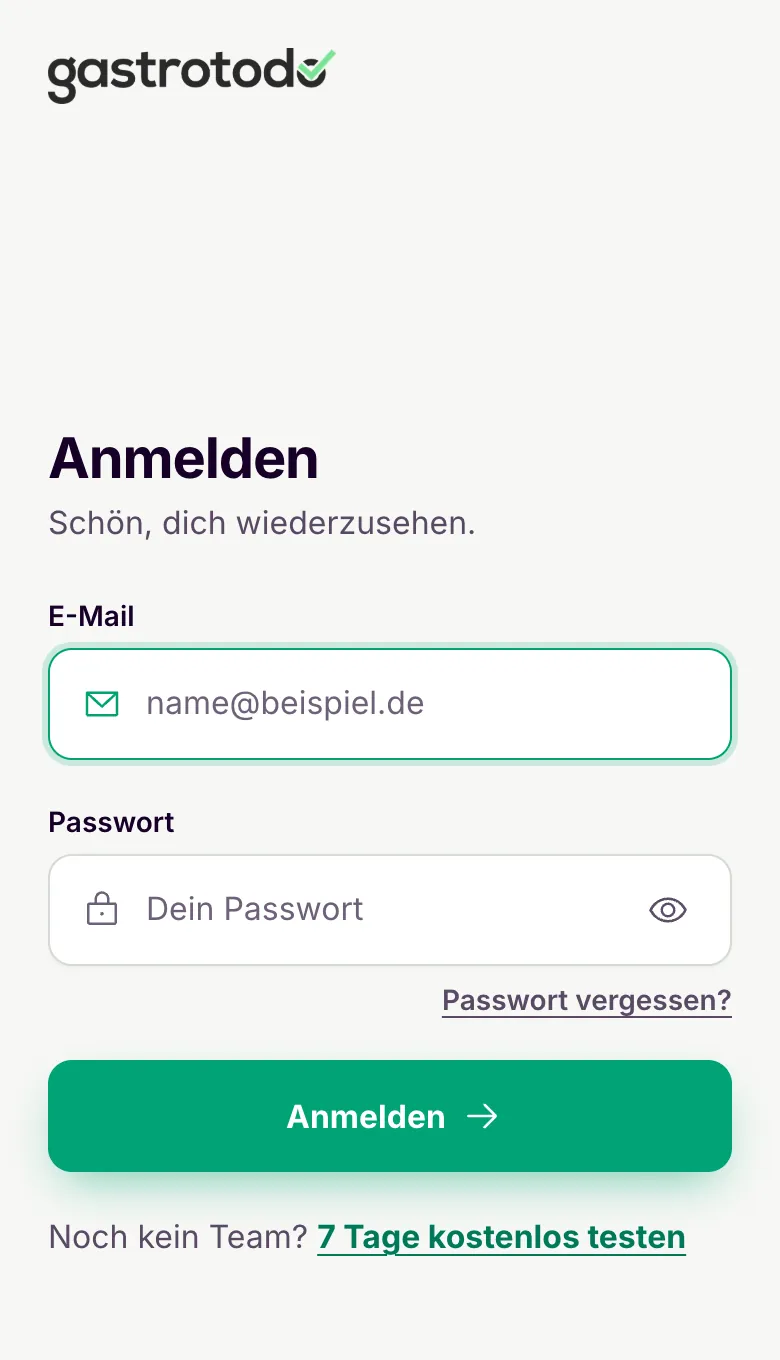
Forgot your password?
It happens. On the sign-in page, tap Forgot your password?, enter your email, and you'll get a link to reset it.
Installing gastrotodo on your phone
gastrotodo is available as an app in the App Store and on Google Play. Search for "gastrotodo" and install the app.
Alternatively, gastrotodo also works in the browser — you can add it to your phone's home screen:
- iPhone: open Safari, tap the share button, "Add to Home Screen".
- Android: open Chrome, tap the three dots at the top right, "Add to Home screen".
If you use gastrotodo in your phone's browser, after a few seconds a notice slides up pointing you to the app — It's easier with the app — with a button straight to the App Store or Google Play. If you tap Continue in browser or close the notice, it won't come back for 30 days. It doesn't appear on a computer, inside the app itself or on kiosk devices.
Managing your subscription
You manage your subscription under Settings › Account › Membership & billing. There you can:
- See your current plan
- Change your plan
- Update payment methods
- View invoices
- Cancel
Note: Changing your plan, updating payment details and cancelling all run through the Stripe customer portal and only work outside the app (e.g. on a computer or at gastrotodo.de in your phone's browser). The installed app shows your plan and usage, but not the button that takes you there. With the built-in roles, the page is visible to team lead and up. Details: Manage your subscription.