
Getting started
Who can do what? Roles & permissions
Every team member in gastrotodo has a role that defines what they can see and do. For most businesses the built-in roles are all you need:
- Employee — the operational baseline. Work through tasks, document them, flag when something is missing or broken.
- Shift Lead — like Employee, plus publishing posts in the "News" feed.
- Team Lead — manages the team: tasks, HACCP, stores, members, briefings, settings as well as membership & billing.
- Organization Lead — the role of the person who registered the business. Can do everything a Team Lead can, can also give others the Organization Lead role, and is the only one who can delete the team.
If your business belongs to an organization (several businesses under one roof), some of the built-in roles have different names there — the Team Lead, for example, is called Area Manager and the Organization Lead Organization Management — and the organization's own roles are added, such as Organization Administrator and Owner or roles it created itself.
What Employees can do
- See tasks and tick them off
- Enter readings (for HACCP tasks)
- Take photos (when a task requires one)
- Read and acknowledge briefings
- Add items to the shopping list
- Report defects
- Read posts in "News" and react to them with emojis
- Edit their own profile (name, picture, language)
- View the calendar
- During an inspection, open the HACCP documentation, share it by link and download it as PDF — via Is an inspection taking place? in Settings (if you use the HACCP extension)
What Shift Leads can do in addition
- Write and pin posts in "News"
- Look up in the calendar on which days a person worked
- Get a push notification in the app when a HACCP reading misses a limit (with the Push notifications extension)
- Open the HACCP dashboard that this push leads to
Shift Leads don't get the e-mail about a HACCP deviation — that goes to the Team Lead and every role above. If the Assign role dialog lists "HACCP alerts" for the Shift Lead, that means the push.
What Team Leads can do in addition
- Create, edit and delete tasks
- Adopt task templates into the team
- Invite and manage members and assign roles
- Set up stores, departments and shifts
- Create and track briefings
- Manage the HACCP documentation (Settings › Tasks & HACCP › HACCP Audit)
- Manage files and knowledge pages in the knowledge base
- Activate kiosk mode
- Enable and disable extensions
- View membership & billing and open the Stripe customer portal via Manage subscription
Who looks after the subscription?
With the built-in roles, the page Settings › Account › Membership & billing is visible to Team Lead and Organization Lead — not to Employees or Shift Leads. Both lead roles can open the Stripe customer portal there via Manage subscription and change the plan, payment details and cancellation. A few exceptions:
- In the installed app the button is missing. You see your plan and usage and a note to open the portal on a computer or in your phone's browser.
- Without payment details on file the page only shows "No active subscription." and no button.
- For locations of an organization whose billing is run by the organization, you see the plan and limits read-only. Payment details and invoices are then managed by the organization.
More on that: Manage your subscription.
Assigning roles
Whoever registers the business automatically gets the Organization Lead role. People who join via the invitation link start as Employees.
You change a person's role under Settings › Team › Members: open the three-dot menu next to the person, tap Assign role, pick the role, then Assign. Before you confirm, the dialog shows you an overview of what the selected role can do.
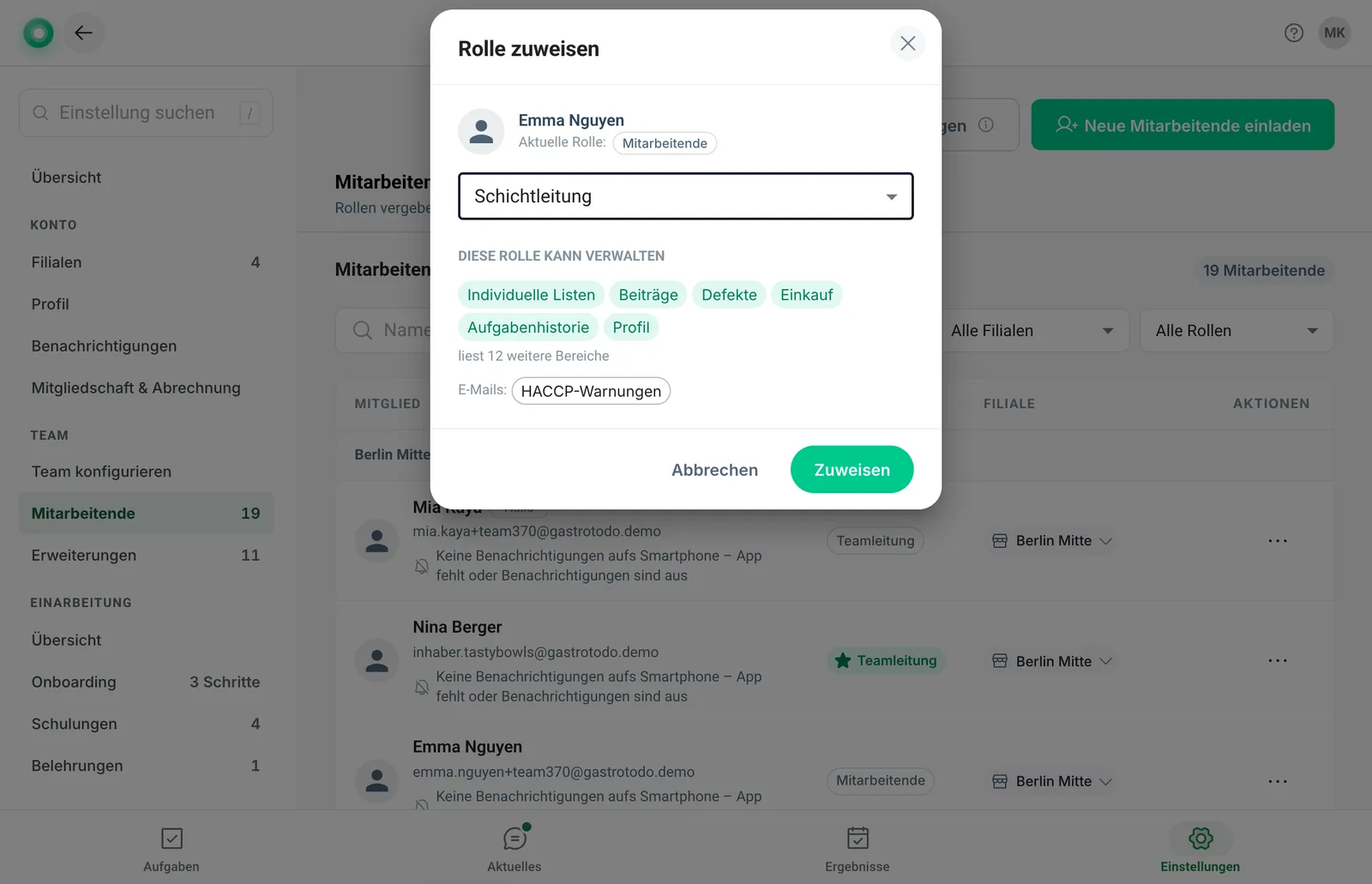
Three safety rules always apply:
- You can't give anyone a role above your own — those roles are greyed out in the selection and marked "(higher than your role)".
- You can manage people on your own level — so two Team Leads can cover for each other.
- People above your level can neither be given another role nor removed from the team by you — those menu items are missing for them. A Team Lead therefore can't demote the Organization Lead.
Special case: kiosk mode
If a team shares a single device (e.g. a tablet on the wall), there's a shared account without individual logins. Only people with the Employee role can select themselves there — anyone who becomes a Shift Lead or higher no longer appears on the kiosk. Details: Kiosk mode.