
HACCP
Completing HACCP tasks
With HACCP tasks you record what the food safety authority will want to see later — a reading, a signature, or simply that the check took place. The icon to the left of the title shows you what's needed:
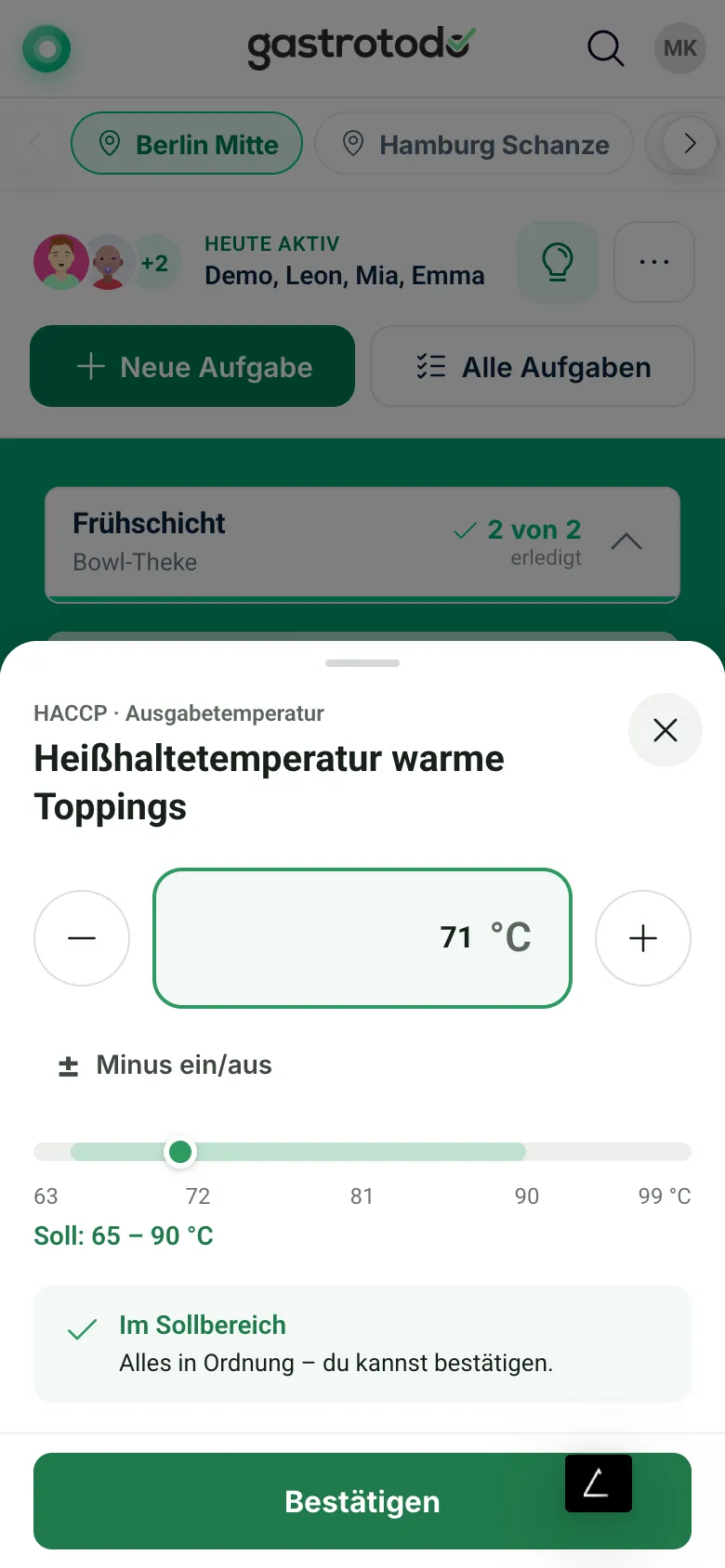
- Block with a pencil — a measurement: you enter a value here, e.g. a temperature.
- Pencil — a signature: you confirm the task with your signature. Tasks without HACCP carry the pencil too when the team lead requires a signature.
- Normal checkbox — pure documentation without a reading and without a signature: just tick it off (see below).
How to enter a reading
- Tap the block with a pencil icon.
- Enter the reading — e.g. the temperature. For temperatures you choose the sign with Plus and Minus, and the arrow buttons raise or lower the value in small steps.
- While you type, the app already shows whether the value is OK: Within target range — or e.g. 2.1 °C too warm.
- If a signature is required, sign on the screen with your finger.
- Tap Confirm.
Forgot the minus? If a value is only off because of its sign — say +18 °C for a freezer — the app asks e.g. Did you mean −18 °C? Tapping it takes over the corrected value. The app never changes anything by itself: a freezer that really is at +18 °C is exactly the case the documentation is supposed to capture.
Bluetooth thermometer: If a thermometer is linked to the task (Smart devices extension), the gastrotodo app reads it in the background when you open the task — "Loading the reading from the thermometer …". It then offers the value to take over. Only what you confirm gets entered; you can use the input field yourself the whole time. This isn't available in the browser.
What happens with an out-of-range value?
If your team lead has set limits (e.g. "at most 7 °C") and you enter a value above them (e.g. 9 °C):
- The app shows the deviation, e.g. "2 °C too warm", and the button reads Continue to corrective action.
- You briefly describe what you did — e.g. "adjusted the thermostat and re-measured" — and confirm.
- The team lead and every role above get an email with the out-of-range value and your corrective action. If there are enough earlier readings, the email also shows how the last 30 days went.
- Whoever gets HACCP warnings as push notifications (with the default roles, shift leads and above) also hears about it in the gastrotodo app. You don't get a push yourself — you're already standing right there.
Afterwards the task shows an orange chip with a warning icon in the task list instead of the green one. That way everyone can see at a glance that a deviation with a corrective action has been recorded here.
That's not a bug, it's the whole point — gap-free documentation.
Confirming with a signature
If a task only requires a signature, the pencil opens the same window without a measurement field: "Confirm the task with your signature." Sign with your finger and tap Confirm. The signature is saved when you submit.
Tasks without a reading
Some HACCP tasks don't require a reading, only proof that something was done:
- Cleaning and disinfection — "The cleaning was done"
- Pest control — "The inspection was carried out"
- Staff training — "The training took place"
- Incoming-goods inspection without measurement — e.g. "Best-before dates checked on delivery"
For these tasks you'll see a normal checkbox — just tick it off. If your team lead also requires a signature, you'll see the pencil there instead.
When the check isn't needed today
Some checks don't happen every day — no delivery, no incoming goods check. If your team lead has switched on May be skipped for the task, here's how you report it:
- Tap the X icon on the task.
- Choose Task not needed.
- Enter the reason under Why is it not needed today? — e.g. "No delivery today". A reason is required.
- Tap Report as not needed.
The task is then closed for today, and the reason appears below its title. In the HACCP documentation the occurrence shows up as "Not needed" with your reason and name; in the HACCP dashboard it doesn't count as a missing entry.
Without "May be skipped", the X icon only offers cancelling the task — more on that under Cancel a task.
Ticked off by mistake?
If you tap the tick on a completed HACCP task again, the app asks first: Take this completion back? The text names the time and the reading, e.g. "The reading from 07:12 (5.3 °C) will be deleted and no longer appear in the HACCP report." The entry is only removed once you tap Take back.
This question always appears for HACCP tasks, and for other tasks as soon as something was recorded — a value or text, a signature, a photo or a note. Plain tick-off tasks can still be undone with a single tap.
Where does the data end up?
Everything you enter — measurements, corrective actions, signatures, who did what and when — automatically flows into the HACCP documentation. You can pull it up as a log and print it any time. More on that: HACCP documentation.