
Calendar & reports
Daily reports
The daily report shows you everything that happened on a specific day: which tasks were completed, what got missed, and who was on shift.
How to open a daily report
Go to the Results tab (third tab) and tap on a day in the calendar.
What you see
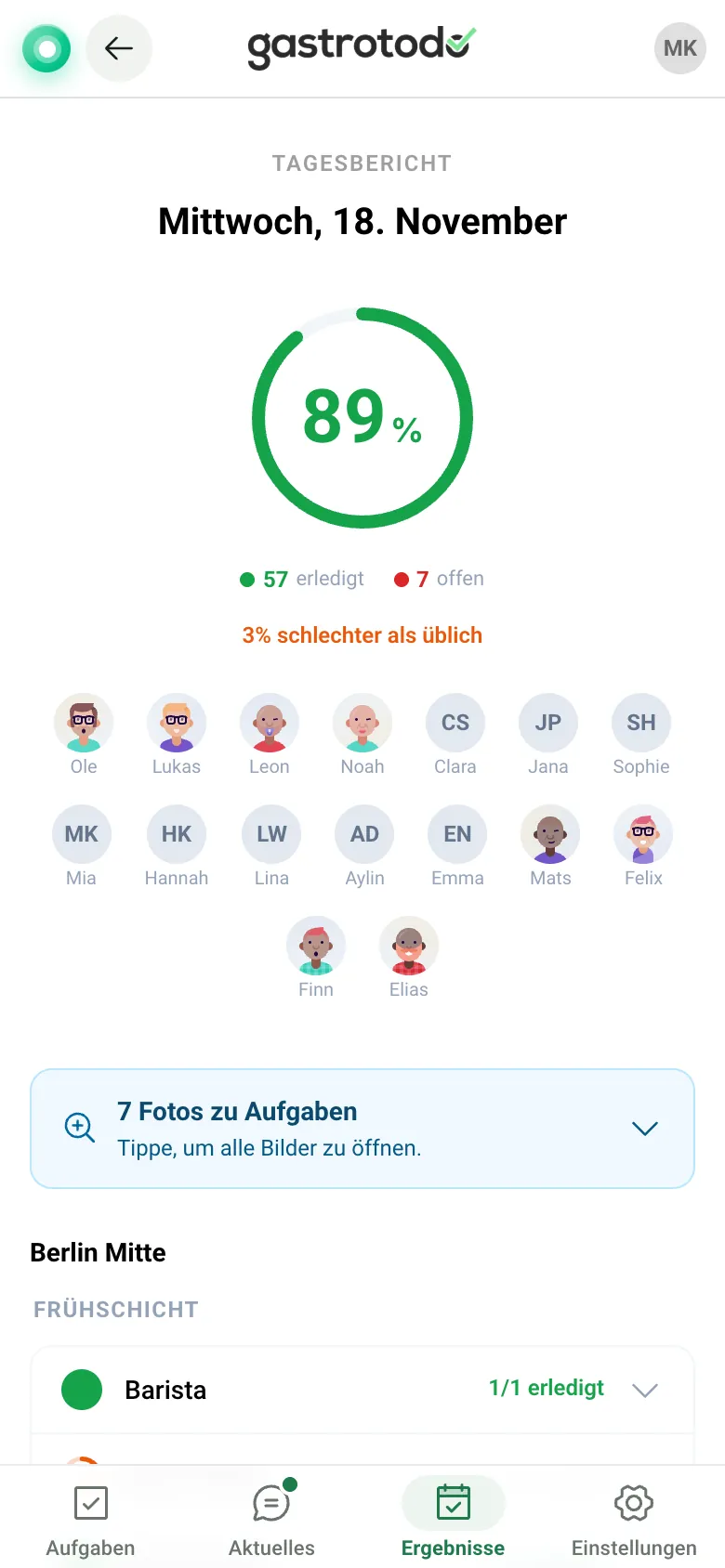
Summary at the top
- A percentage ring with the overall completion rate: what share of tasks got done?
- Below it, counts for: completed, cancelled, open
- A short comparison to the 7-day average — e.g. "3% better than usual" or "5% worse than usual"
Cancelled tasks lower the rate just like open ones. Tasks reported as not needed aren't counted, neither in the rate nor in the figures.
Who was on shift
Who was on shift that day? With profile picture and first name, right below the ring. Tap on a person to see what they completed or cancelled.
Breakdown by location, shift, and department
For each location you see:
- The location name as a header (only if your team has more than one location)
- One heading per shift
- Per department within the shift:
- A small progress ring and the counter
completed / total(e.g.3/5) — tasks reported as not needed aren't counted here either - An expandable task list with details: every completed, cancelled or not-needed task is listed with time and person, marked with a green (done), orange (cancelled) or grey (not needed) stripe. Cancelled tasks show their reason, tasks that weren't needed show Not needed with the reason. Tasks without a response are grouped at the end under No reply.
- Photos, if a task was completed with a photo
- A small progress ring and the counter
Shopping list
If items from the shopping list were checked off or added on that day, two sections appear at the bottom:
- Purchases (count) — what was marked as bought today
- Shopping list (count) — what was newly added today
Tap on either to see the individual items.
What counts on which day?
- Tasks caught up on later — If a task is only completed on a later day, it stays under No reply in the report for the day it was planned, and shows as completed in the report for the day it was caught up on. That way the gap stays visible where it happened.
- Tasks not needed — appear in the task list with a note and the reason, but don't count towards the rate. More on that: Cancel a task.
- Rest days — There's no daily report for a rest day: scheduled tasks don't count as missed, and no email or push is sent. Anything that was done anyway stays visible. You add rest days in the calendar.
Getting the report on your phone
At the shift's configured time, the daily report goes to team leads by email — and in the gastrotodo app also as a push notification with a small summary card. Tapping it opens that exact day. If you're assigned to a location, the push only shows that location's numbers. Tasks reported as not needed have their own Not needed section in the email, with reason and name. More under Notifications.
Tip
The daily report is a great tool for the morning briefing: "Yesterday we hit 92%, only cleaning the counter got missed — let's do that first thing today."