
News
News: posts, shopping list & defects
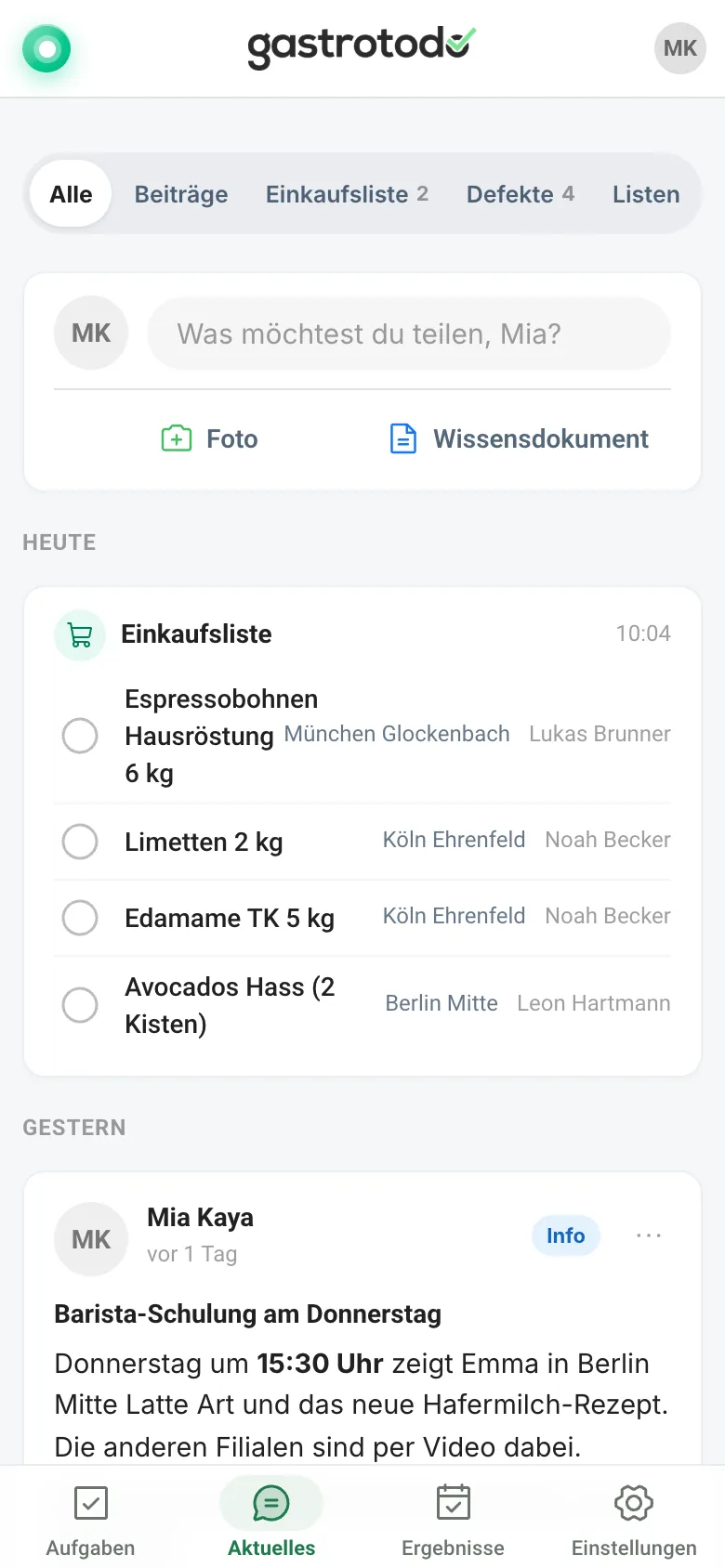
The News tab (second tab) is gastrotodo's team feed — like a bulletin board, except nothing gets lost. At the top of the page you switch between four views:
- All — the combined feed of posts, shopping list and defects
- Posts — posts only, without shopping list and defects
- Shopping list — what needs to be reordered
- Defects — what's broken and needs to be fixed
Without an active subscription or trial, Tasks, News, Results and the HACCP dashboard are locked. More on that: Manage subscription.
Posts
Posts are your team's announcements — "The chimney sweep is coming Thursday", "New opening hours from May", "Team meeting Friday 2 PM".
Writing posts is for team leads and shift leads. At the top of the feed is the field What's on your mind, …? with your name. Tapping it opens the Write a post window; Publish post sends the post out. Above the button it says who sees it — everyone on your team —, and afterwards the app confirms Post published. A post needs some text or at least one photo or file. It consists of:
- Text — with formatting (lists, links)
- Title (optional)
- Category — a coloured chip: Info, Warning, Question or Event
- Photos, videos and files — photos and videos via the Photo button, other files via the paperclip; images appear full-width in the post, files as tappable attachments. In the app, photos and videos open your phone's own picker (camera or library). Videos can be at most 2 minutes long.
- Knowledge documents — link pages or files from the knowledge base, e.g. the new cleaning schedule
Everyone on the team can read and react to posts:
- Reactions — tap one of the quick emojis (✅ 👍 🎉 👏 🙏 😀) or pick any emoji via Add reaction. Tapping again removes your reaction.
- Read status — posts are automatically marked as read once you open the feed. Below every post you'll see who reacted and "Read by X". Tapping that line shows all names; team leads additionally see who has read it.
Pin to top: Team leads (and shift leads) can pin important posts to the top via the three-dot menu — they then stay at the very top of the feed with a PINNED label until they're unpinned.
For mandatory briefings that everyone has to confirm with proof (e.g. hygiene training) you don't use posts — use Briefings instead.
Shopping list
Anyone on the team can put items on the shopping list — not just the team lead. There are two ways items end up there:
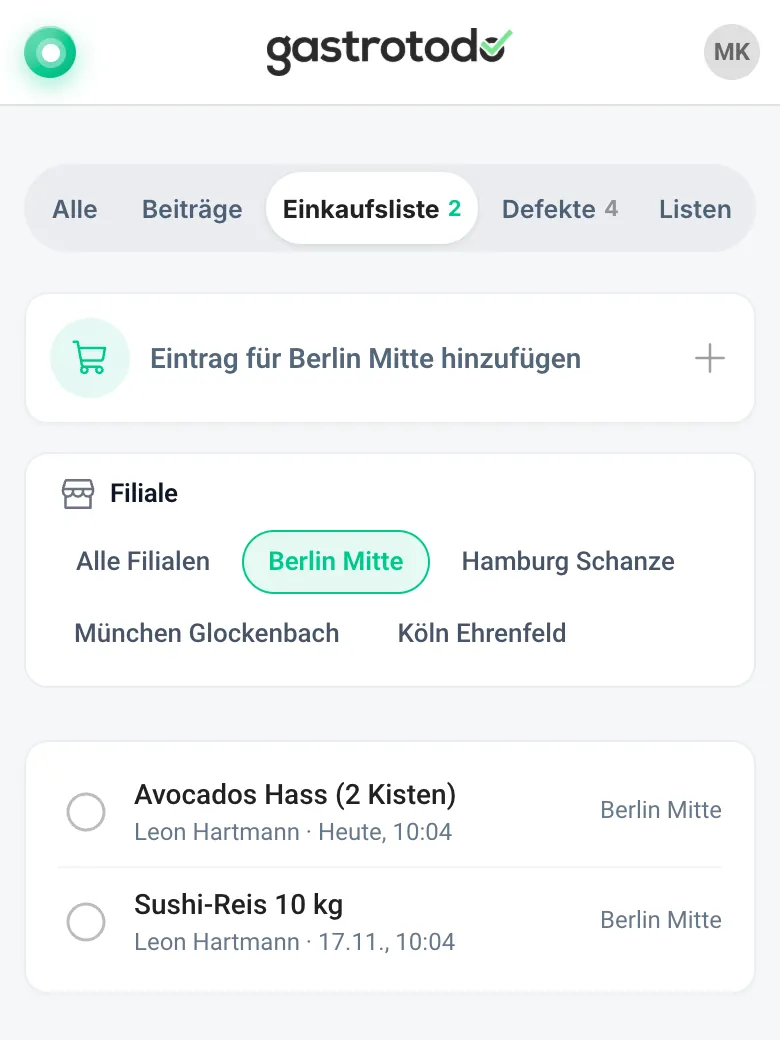
Add manually — Switch to the Shopping list tab, tap Add entry and send the item off.
Automatically when cancelling a task — Anyone who cancels a task and picks a product (for example "All-purpose cleaner empty") can tick a box to send it straight to the shopping list. Details: Cancel a task.
Next to every entry you see who added it and when. Tapping the checkbox marks it as bought.
Defects
When something breaks — dishwasher, fridge, fryer — anyone on the team reports it via Report a defect in the Defects tab.
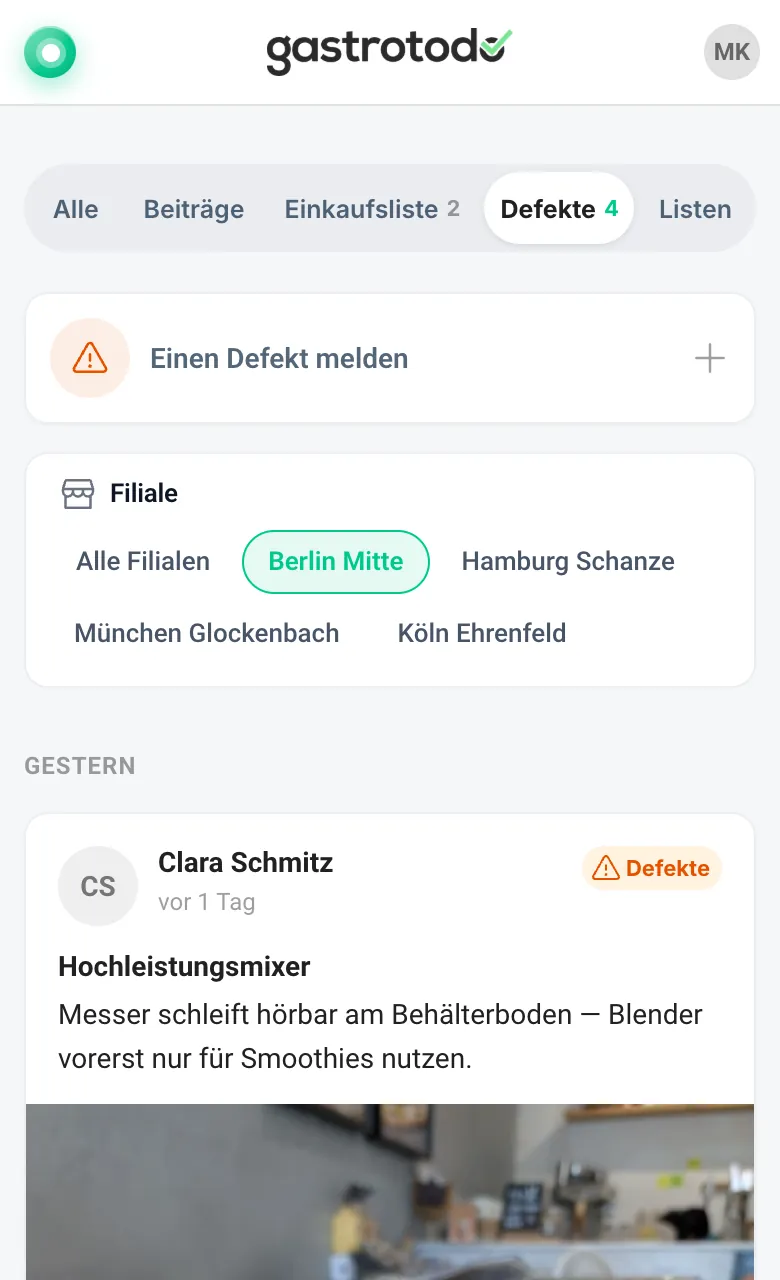
The form asks for:
- Store — only if your team has several stores: where is the defect? If you're assigned to a store, it's preselected; with Not specified the report applies to all stores.
- Device / Item (optional) — what's affected? Pick from the devices linked to your team — consumables (cleaners, disposables) deliberately don't show up here, those belong on the shopping list. If the device isn't in the list, just enter its name as free text.
- Comment — what exactly is wrong?
- Photo (optional) — usually a picture says more than a description.
Once your team has several stores and a store was picked in the report, the defect card shows that store next to the time.
Defects stay visible in the feed until someone closes them with Problem solved. That way everyone knows what's still open.
Who sees what?
Posts, the shopping list and defect reports are visible team-wide — regardless of store or department. If you have stores or departments that operate completely independently from each other, keep that in mind when you post.
If your team has several stores, the Shopping list and Defects views have a store filter at the top. If you're assigned to a store, it starts on that store; with All stores you see everything again. Entries without a store show up under every store.